Your Zoom account is on the Basic plan. Upgrade to Zoom Pro or higher to make past participant lists available to the integration.
Zoom Integration
Connect Zoom to MasterInbox to automatically record whether guests attended meetings booked through MasterInbox and held on Zoom. You can add the app from Integrations, review attendance in Bookings, and remove the connection whenever you need to.
What the Zoom integration does
After a Zoom meeting booked through MasterInbox ends, we check the participant list once and compare the names with the people invited to the booking.
Meeting ends → Participant list checked once → Invited guests compared → Attendance result
Attended
Green badge. An invited guest joined. We record the attendance and how long they were in the call.
No-show
Red badge. None of the invited guests joined.
No badge
We could not determine which attendees were invited, so we record nothing rather than guess.
When we cannot recognize a guest, we leave attendance unmarked instead of guessing that the meeting was missed.
What we read and what we do not
We read only the participant list of a Zoom meeting that has finished.
We read: Participant display names, join times, and leave times.
We do not read or store: Recordings, transcripts, chat, meeting content, contacts, or information about meetings not booked through MasterInbox.
Email addresses: Zoom does not share participant email addresses with the app, so we never receive them.
We check only completed Zoom meetings booked through MasterInbox. The integration does not access meeting recordings, transcripts, or chat.
Before you start
Zoom attendance requires all three prerequisites below.
Zoom Pro or higher: Zoom Basic does not make the participant lists required for this integration available.
Zoom account administrator: The app is admin-managed. One Zoom administrator connects it for the account, rather than each meeting host connecting separately.
One-person meeting reporting: In Zoom account settings, enable Show one person meetings and webinars on Dashboard and Reports. Without this setting, Zoom hides sessions where only the host attended, so no-shows cannot be detected.
Leave one-person meeting reporting enabled if you need accurate No-show results. A meeting where only the host joined must be visible to Zoom reports for us to detect it.
Adding the app
Only MasterInbox workspace administrators can connect Zoom. One Zoom account administrator authorizes the app for the account, rather than each host connecting separately.
1
Open Integrations
Sign in to MasterInbox and go to Settings → Integrations.
2
Select Zoom
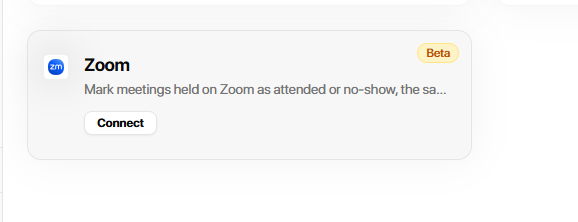
Find the Zoom card and select Connect.
3
Review Zoom's permission
Zoom requests meeting:read:list_past_participants:admin, which allows the app to read participant lists for past meetings on the connected account.
4
Allow and confirm
Select Allow. Zoom returns you to MasterInbox, and the Zoom card shows the connected account.
Using the app
Once connected, the integration checks eligible Zoom meetings automatically, about 20 minutes after each meeting ends.
After a Zoom meeting ends, allow about 20 minutes for the attendance check.
Open Bookings in MasterInbox.
Look for a green Attended badge or red No-show badge on a checked meeting.
Hover over the badge to see whom we recognized and how long they attended, such as “Rob Henderson was in this call for 22 minutes.”
If a meeting has no badge, we could not determine attendance and deliberately left it unmarked. Attendance results also contribute to the show-rate figures above the Bookings list.
We read only Zoom meetings booked through MasterInbox. Google Meet meetings are handled by the Google Calendar integration; phone and in-person meetings are unaffected. For more about your meeting list, see Bookings Page.
Removing the app
You can disconnect the app in MasterInbox or remove it through the Zoom App Marketplace. Either method removes our access immediately.
Remove Zoom from MasterInbox
Only MasterInbox workspace administrators can disconnect this integration.
Open Settings → Integrations.
Find the Zoom card and select Disconnect.
Remove MasterInbox from Zoom
Sign in to the Zoom App Marketplace.
Open Manage → Added Apps, or search for MasterInbox.
Select the app and choose Remove.
We delete stored authorization tokens immediately and make no further calls to Zoom after removal.
Attendance results already saved against past bookings remain on those meetings. They contain the information we previously displayed, not Zoom identifiers. If you want those results deleted too, contact [email protected].
If it is not working
Check the Zoom plan, one-person meeting setting, booking origin, and whether we could identify any invited attendee.
Meetings show Attended but never No-show
Enable Show one person meetings and webinars on Dashboard and Reports in Zoom account settings. Without it, the host-only calls needed to identify no-shows are hidden.
Some meetings have no attendance badge
We leave attendance unmarked when we cannot match a participant to the booking's invitees. Zoom also retains participant data for only 15 months, so older meetings cannot be checked.
Nothing happens after meetings end
Confirm that the bookings were created through MasterInbox and that their meeting links are Zoom links. Allow about 20 minutes after each call ends for the check.
Support
Email [email protected] or use the support link in the app for assistance.
Was this helpful?
Was this helpful?