
Workflow Conditions
Workflow conditions allow you to control when a workflow should run.
After a trigger occurs, Master Inbox checks all configured conditions. The workflow only executes if the conditions match.
Conditions help you build more precise automations and prevent workflows from running on every conversation.
How Conditions Work
Workflows follow this process:
Trigger → Conditions → Actions
Example:
Trigger → Incoming Message
Condition → Label = Interested
Action → Send Slack Notification
In this example, the workflow only sends a Slack notification if the incoming message belongs to a conversation with the label "Interested."
Without the condition, every incoming message would trigger the notification.
Are Conditions Required?
Conditions are optional.
You can create workflows that run immediately after a trigger occurs without adding any conditions.
However, conditions are recommended when you want more control over when workflows execute.
Condition Types
Master Inbox supports the following condition types.
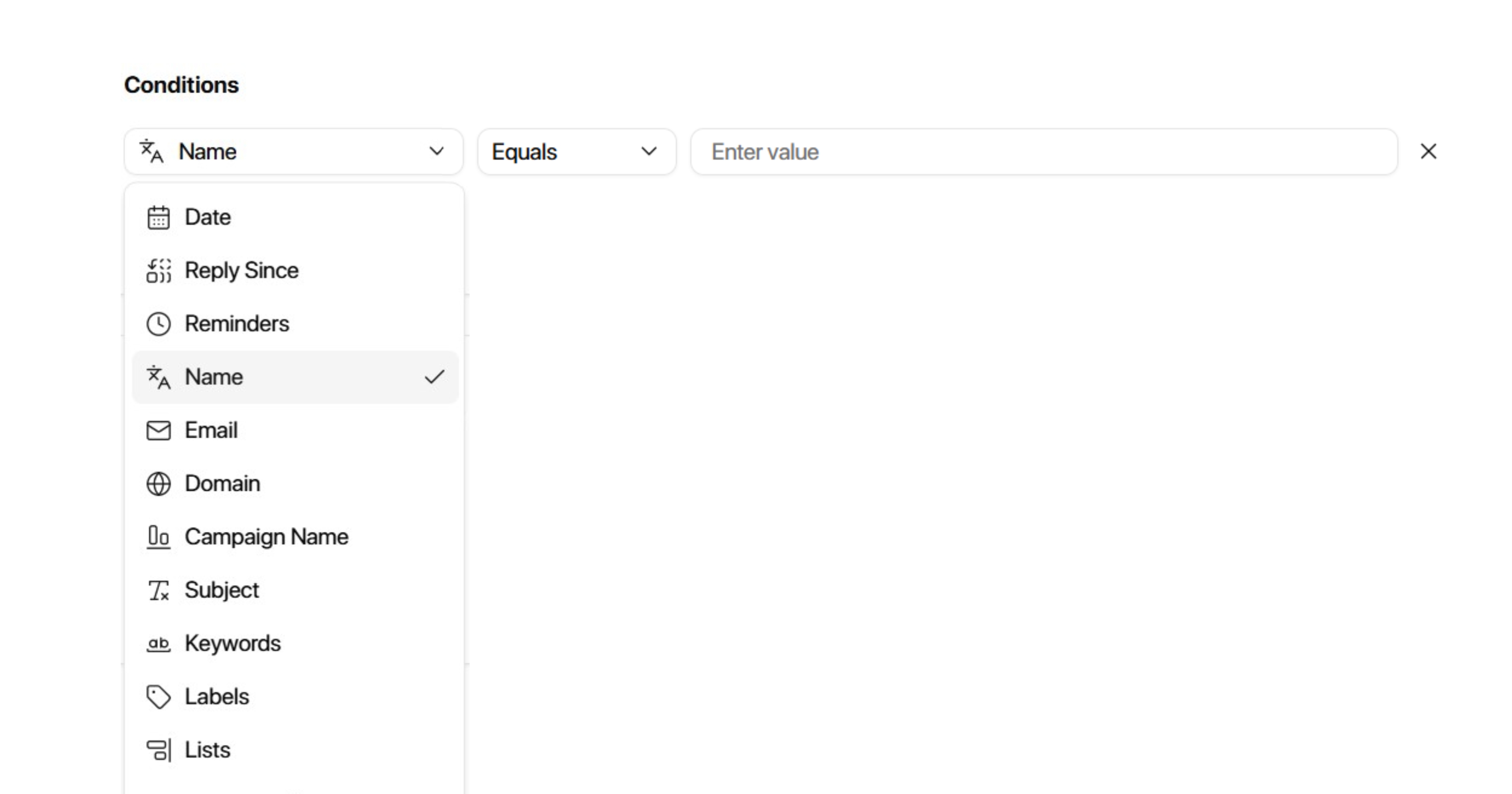
Date
Filter conversations based on dates.
Common Use Cases
Run automations for recent leads
Filter conversations created during specific periods
Trigger time-sensitive workflows
Day
Use the Day condition to choose which days of the week a workflow is allowed to run. Select one or more weekdays. The condition repeats every week, so you do not need to enter a new date range for each weekend or weekday.
Supported triggers: Incoming Message and Add Label.
The day is evaluated using your workspace timezone, rather than the server timezone.
How to Configure the Day Condition
Create or edit a workflow with the Incoming Message or Add Label trigger.
Under Conditions, add Day.
Select the day or days when the workflow should run, such as Saturday and Sunday.
Choose an action and save the workflow.
Example: Trigger: Incoming Message. Conditions: Day = Saturday or Sunday and Label = Interested. Action: Add Label → Sequence | Inbound. This can be used to route weekend replies into an inbound sequence.
The Day condition is currently available with Incoming Message and Add Label triggers. Do not assume it appears for every workflow trigger.
Phone Number
Use the Phone Number condition to check whether a prospect already has a phone number saved.
Operators
is empty: The prospect does not have a phone number.
is not empty: The prospect already has a phone number.
Common Use Cases
Run phone enrichment only for prospects whose phone number is missing.
Notify your team immediately when an interested prospect already has a phone number.
After enrichment finishes, send different notifications depending on whether a phone number was found.
Example: Trigger: Add Label (Interested). Condition: Phone Number is empty. Action: Enrich Prospect → Waterfall. A separate workflow can handle interested prospects whose phone number is not empty.
The Phone Number condition is also available as a main inbox filter.
Reply Since
Filter based on how recently a prospect replied.
Common Use Cases
Follow-up automations
Lead engagement workflows
Active conversation tracking
Reminder
Filter based on reminder activity.
Common Use Cases
Reminder-based workflows
Follow-up management
Task automation
Name
Filter using the prospect's name.
Common Use Cases
Target specific contacts
Internal testing
Contact-specific automations
Filter using the prospect's email address.
Common Use Cases
Account-specific workflows
Customer workflows
VIP contact routing
Domain
Filter using email domains.
Common Use Cases
Company-based routing
Enterprise lead qualification
Customer segmentation
Example
Domain contains:
Campaign Name
Filter conversations associated with specific campaigns.
Common Use Cases
Campaign reporting
Campaign-specific automations
Outbound workflow control
Subject
Filter conversations based on email subject lines.
Common Use Cases
Support ticket routing
Meeting request identification
Automated categorization
Keywords
Filter conversations using message content.
Common Use Cases
Intent detection
Lead qualification
Example
Keywords:
pricing
demo
proposal
Channel
Filter by connected channels.
Channels represent connected communication accounts inside your workspace.
Examples include:
Email accounts
LinkedIn accounts
Other connected channels
Common Use Cases
Team-specific automations
Channel-based routing
Inbox segmentation
Labels
Filter using conversation labels.
Labels are one of the most commonly used workflow conditions.
Common Use Cases
Lead qualification
Pipeline management
Internal routing
CRM synchronization
Example:
Label = Interested
Lists
Filter using conversation lists.
Common Use Cases
Lead-stage routing
Team assignment workflows
Label Sentiment
Filter conversations based on sentiment labels.
Common Use Cases
Positive lead routing
Intent detection
Escalation workflows
Read Status
Filter based on whether conversations have been read.
Common Use Cases
Unread message management
Team notifications
Inbox organization
Replies in Sequencer
Filter based on sequencer activity.
Common Use Cases
Outreach automation
Sequence management
Campaign control
Source From
Filter conversations based on their source.
Examples may include:
HeyReach
Instantly
Smartlead
Manual conversations
Other connected sources
Common Use Cases
Source-specific routing
Campaign automation
Reporting workflows
Folder
Filter using conversation folders.
Examples:
Inbox
Archive
Marketing
Spam
Trash
Common Use Cases
Folder management
Workflow organization
Internal routing
Ongoing Conversation
Filter based on whether a conversation is active.
Common Use Cases
Follow-up workflows
Active lead management
Engagement tracking
Last Message From
Filter based on who sent the most recent message.
Common Use Cases
Prospect engagement workflows
Follow-up automation
Ownership management
Sent From
Filter based on the sending account.
Common Use Cases
Multi-inbox workflows
Team routing
Account-specific automations
Custom Fields
Filter using custom prospect data.
Common Use Cases
Advanced segmentation
CRM-based workflows
Custom qualification logic
Message Count
Filter based on the number count of messages within a conversation.
Common Use Cases
Engagement scoring
Qualification workflows
Conversation maturity tracking
Example
Message Count > 5
Identify highly engaged prospects.
Conditions are not required for certain trigger types:
New Reminder
Due Reminder
Found Phone Number
Meeting Booked
Meeting Rescheduled
Meeting Cancelled
Best Practices
Use Labels for Qualification
Labels are one of the most powerful workflow conditions.
Examples:
Interested
Meeting Requested
Qualified
Client
Using labels allows you to create highly targeted automations.
Use Channels for Team Routing
If multiple teams share a workspace, use channel conditions to ensure workflows only run for the correct inboxes.
Use Keywords Carefully
Keywords can be extremely useful for identifying intent, but overly broad keywords may trigger workflows unintentionally.
Keep Conditions Focused
Avoid adding unnecessary conditions.
The more conditions you add, the more restrictive the workflow becomes.
Start simple and add additional filters only when needed.
Example Workflow
Trigger:
Incoming Message
Conditions:
Label = Interested
Source From = HeyReach
Channel = Sales Mailbox
Action:
Slack Notification
This workflow only sends notifications when interested leads from HeyReach reply through the Sales Mailbox.