
Notifications
Notification Actions allow Master Inbox workflows to instantly alert team members when important events occur.
Notifications are one of the most commonly used workflow actions because they help teams respond faster to leads, meetings, replies, and other high-priority activities.
Master Inbox supports:
Slack Notifications
Email Notifications
When Should You Use Notifications?
Notifications are useful when your team needs to be informed immediately about important activity.
Common examples include:
New lead replies
Interested prospects
Meeting requests
Booked meetings
High-intent leads
Phone number detection
Qualified leads
Support escalations
Slack Notifications
Slack Notifications send real-time alerts to a Slack channel whenever a workflow is triggered.
How Slack Notifications Work
When a workflow runs, Master Inbox sends a notification to your selected Slack channel using a Slack Webhook URL.
This allows your team to monitor important activity without constantly checking the inbox.
Slack Notification Setup
Create a workflow to send notifications to Slack. The Connect Slack option automatically fills in the webhook URL.
Go to Workflows and click Create Workflow.
Name your workflow and choose a trigger. For interested lead alerts, choose Add Label and select the relevant positive labels.
Under Actions, choose Notifications and then Slack Notification.
Click Connect Slack and authorize access. The webhook URL is populated automatically.
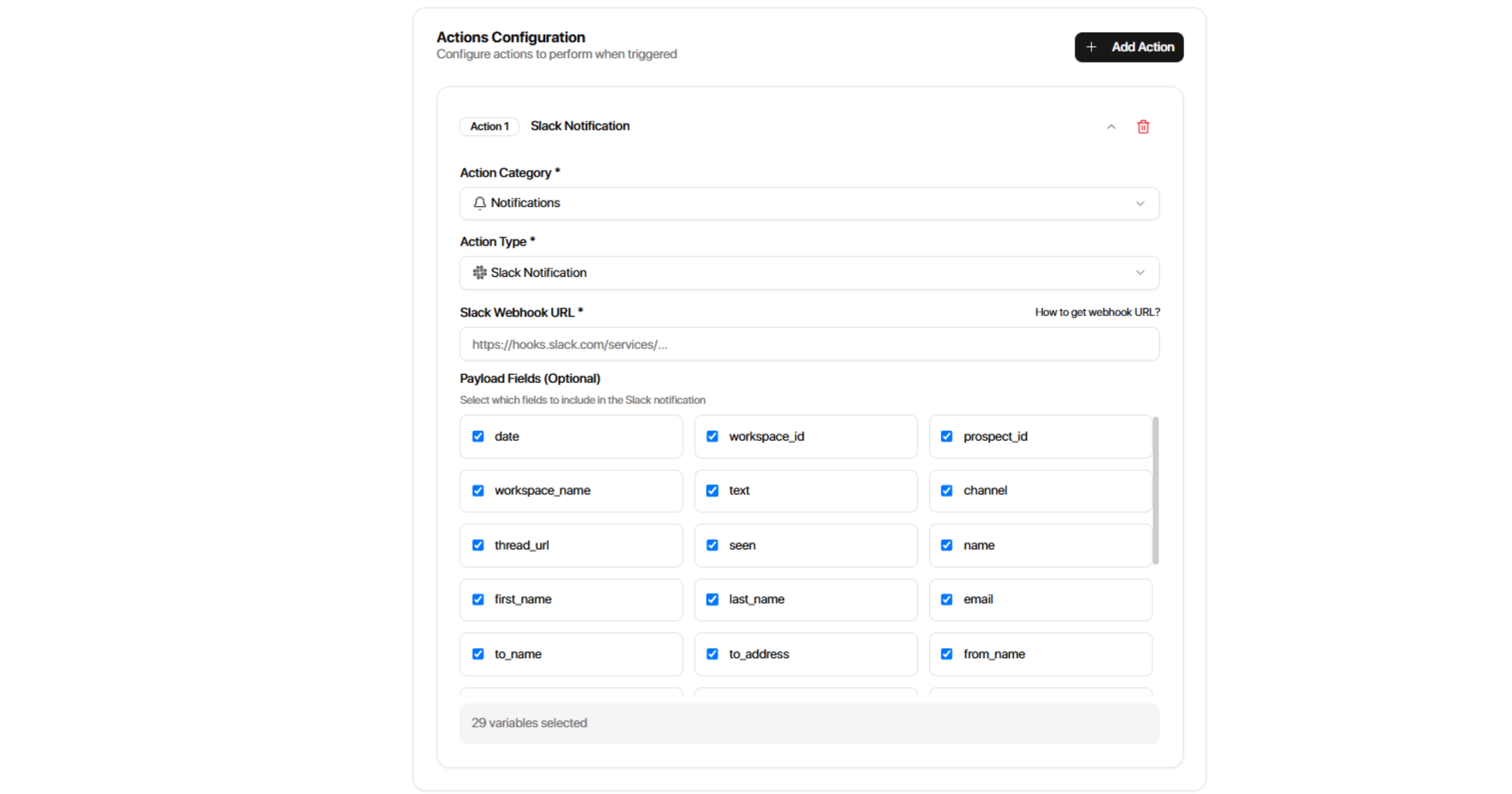
Choose the payload fields you want to include in the Slack notification.
Turn on Draft and reply from Slack if your team needs to respond directly from Slack.
Click Test next to the webhook URL and send a sample notification to a Slack channel.
Click Create Workflow to save the workflow.
How to Reply Directly from Slack
With Draft and reply from Slack enabled, you can review the prospect message, edit an available AI draft, and send a reply directly from Slack without opening your Master Inbox inbox.
A standard Slack notification alerts your team. To reply directly from Slack, enable the separate Draft and reply from Slack toggle in the workflow action.
Notify Your Team When an AI Draft Is Held
To alert your team when a Reply Agent holds a draft for human review, create a workflow using the AI Draft Held (Reply Agent) trigger. Add conditions if needed, choose Notifications and Slack Notification, connect Slack, select payload fields, and enable Draft and reply from Slack.
The notification can include the prospect details, their message, and the held draft so your team can review, edit, and send the response from Slack.
Available Slack Variables
You can include the following fields inside Slack notifications:
Date
Workspace Name
Thread URL
First Name
Last Name
Full Name
To Name
To Address
Workspace ID
Prospect ID
Text
Seen Status
Channel Name
Email
From Name
These variables allow your team to see important lead and conversation information directly inside Slack.
Common Slack Notification Workflows
New Interested Lead
Trigger:
Incoming Message
Condition:
Label = Interested
Action:
Slack Notification
Purpose:
Notify your sales team immediately when an interested lead replies.
Meeting Request Alert
Trigger:
Add Label
Condition:
Label = Meeting Request
Action:
Slack Notification
Purpose:
Instantly notify account owners when a meeting request is identified.
Phone Number Detection
Trigger:
Found Phone Number
Action:
Slack Notification
Purpose:
Alert sales representatives when a high-intent lead shares a phone number.
Meeting Booked Alert
Trigger:
Meeting Booked
Action:
Slack Notification
Purpose:
Notify the team when a new meeting has been booked.
Email Notifications
Email notifications allow Master Inbox to send automated email alerts whenever a workflow is triggered.
These notifications are commonly used for managers, executives, support teams, and stakeholders who may not actively monitor Slack.
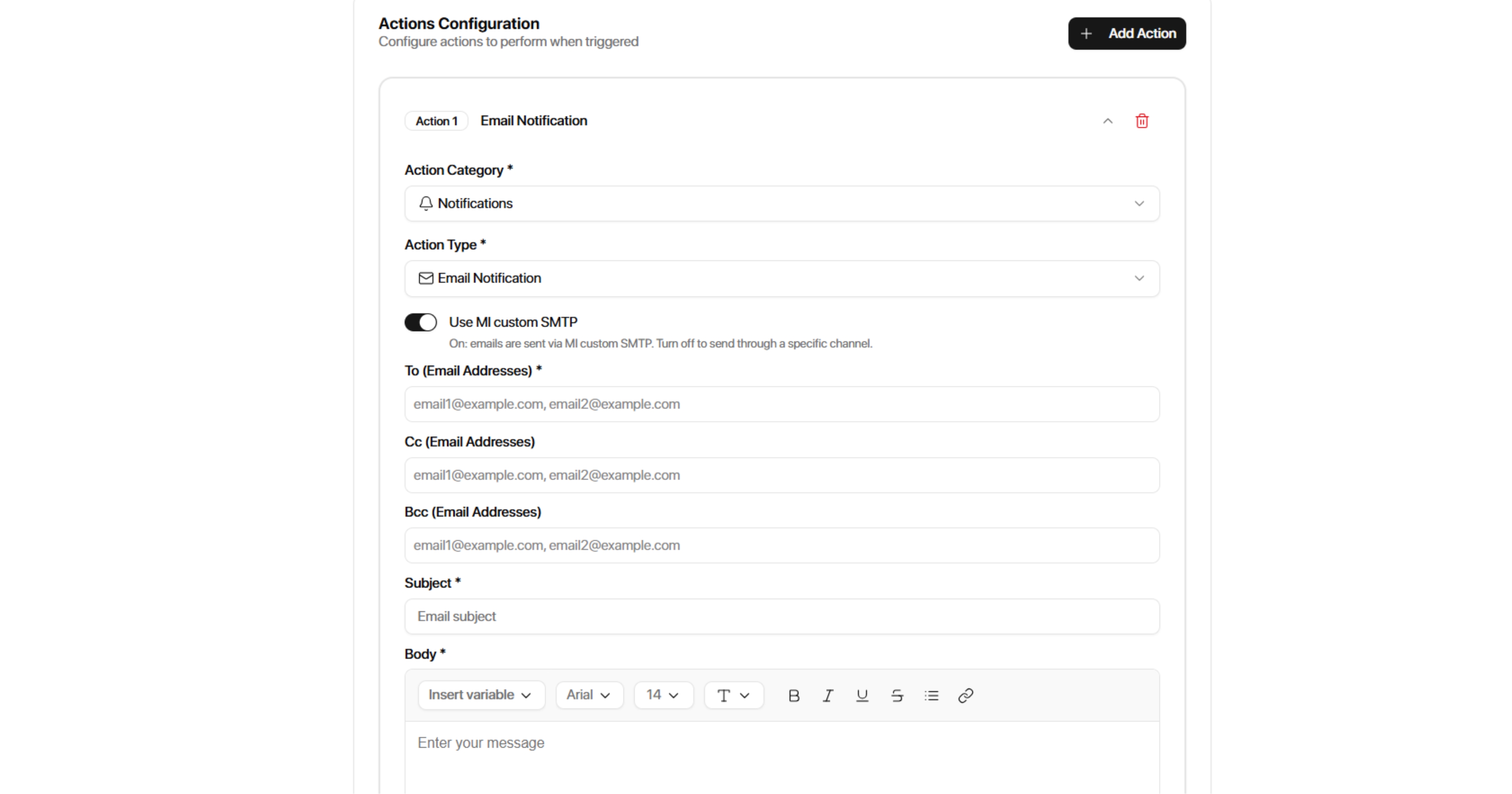
Email Notification Configuration
Action Category
Notifications
Action Type
Email Notification
Email Notification Fields
To
Primary recipient email address.
CC
Additional recipients who should receive a copy.
BCC
Additional recipients who should receive a blind copy.
Subject
Custom subject line for the notification email.
Email Notification Variables
When configuring an Email Notification action, you can use variables to automatically insert information from the conversation into your notification template.
Available variables include:
Lead Name – Inserts the prospect's full name.
Lead First Name – Inserts the prospect's first name.
Lead Last Name – Inserts the prospect's last name.
Lead Email – Inserts the prospect's email address.
Lead Domain – Inserts the prospect's company domain.
Last Message – Inserts the latest message from the conversation.
Thread URL – Inserts a direct link to the conversation in MasterInbox.
Recommended Use Cases
Use Lead Name or Lead First Name to personalize notification emails.
Include Lead Email and Lead Domain to quickly identify who contacted you and which company they represent.
Use Last Message to provide conversation context without opening MasterInbox.
Include Thread URL so recipients can open the conversation directly in MasterInbox with a single click, eliminating the need to manually search for the prospect or thread.
Example
New reply received from {{Lead Name}}

Email: {{Lead Email}}
Company: {{Lead Domain}}

Latest Message:
{{Last Message}}

Open Conversation:
{{Thread URL}}
In addition to the standard notification variables, Email Notifications also support the following variables:
Lead Company – Inserts the prospect's company name.
Lead Position – Inserts the prospect's current position.
Lead Job Title – Inserts the prospect's job title.
Lead LinkedIn URL – Inserts a direct link to the prospect's LinkedIn profile.
Lead LinkedIn Profile – Inserts the prospect's LinkedIn profile information.
Lead Phone – Inserts the prospect's phone number.
Campaign Name – Inserts the name of the campaign the prospect belongs to.
These variables provide additional prospect context, allowing recipients to quickly understand who replied without opening external systems.
Rich Text Formatting
The Email Notification editor includes a rich text editor for creating more structured and readable notifications.
Available formatting options include:
Headings
Font family
Font size
Bold
Italic
Underline
Strikethrough
Text color
Highlight color
Bullet lists
Hyperlinks
Tables
These formatting options help organize notification emails, making important information easier to read.
Reply Templates for Email Notifications
You can reuse existing Reply Templates directly within Email Notifications.
Click Insert Reply Template from the Email Notification editor to insert a saved template instead of building the notification from scratch.
Reply Templates support the same rich text formatting and variables available in the Email Notification editor, allowing you to create consistent notification layouts across your workspace.
Recommended use case: Create standardized notification templates for different teams or workflows so every notification follows the same format.
Example Notification Layout
A common notification layout includes:
Greeting
Direct link to the conversation
Prospect details
Campaign information
Latest message
For example, you can create a table containing:
Field | Variable |
|---|---|
Name | Lead Name |
Company | Lead Company |
Job Title | Lead Job Title |
Lead Email | |
Phone | Lead Phone |
Lead LinkedIn URL | |
Campaign | Campaign Name |
Below the table, include:
Last Message
Thread URL
This layout allows recipients to quickly review the prospect's information, view the latest message, and open the conversation in MasterInbox with a single click.
Example Subject Lines
New Interested Lead - {{first_name}}
New Reply From {{name}}
Meeting Request From {{company}}
Lead Replied - {{email}}
Common Email Notification Workflows
Notify Sales Team About Interested Leads
Trigger:
Incoming Message
Condition:
Label = Interested
Action:
Email Notification
Purpose:
Alert the sales team whenever a qualified lead replies.
Executive Lead Alerts
Trigger:
Incoming Message
Condition:
Label = Enterprise Lead
Action:
Email Notification
Purpose:
Notify leadership when high-value leads engage.
Support Escalation
Trigger:
Add Label
Condition:
Label = Urgent
Action:
Email Notification
Purpose:
Alert support teams about urgent requests.
Meeting Request Notification
Trigger:
Add Label
Condition:
Label = Meeting Request
Action:
Email Notification
Purpose:
Notify account owners when a prospect requests a meeting.
Slack vs Email Notifications
Use Slack Notifications When
Your team actively uses Slack
You need immediate visibility
Multiple team members need to be notified
Fast response times are important
Use Email Notifications When
Stakeholders are outside Slack
Management requires updates
Notifications need to be archived
External recipients need alerts
Use Both Together
Many teams combine both notification types.
Example:
Trigger:
Incoming Message
Condition:
Label = Interested
Actions:
Slack Notification
Email Notification
This ensures that important lead activity is visible across the entire team.
Best Practices
Use Conditions to Reduce Noise
Avoid sending notifications for every message.
Instead, filter using:
Labels
Source
Channel
Lists
Keywords
This ensures your team only receives meaningful alerts.
Prioritize High-Intent Events
Notifications are most effective when used for:
Interested leads
Meeting requests
Booked meetings
Phone numbers detected
Qualified leads
Include Useful Variables
Include information such as:
Prospect Name
Email Address
Message Content
Channel Name
Thread URL
This helps recipients understand the context immediately without opening Master Inbox.