
CRM Actions
CRM Actions allow Master Inbox workflows to automatically synchronize conversation and contact data with your CRM.
Instead of manually updating records after every lead interaction, workflows can automatically push information into your CRM whenever specific events occur.
Currently, Master Inbox supports CRM synchronization with HubSpot.
Why Use CRM Actions?
Keeping CRM records updated manually can be time-consuming and error-prone.
CRM Actions help ensure that:
Contact records stay updated
Lead activity is captured automatically
Sales teams work from accurate data
Important conversations are logged
Pipeline management becomes more efficient
Supported CRM
HubSpot
Master Inbox currently supports workflow-based synchronization with HubSpot.
Sync to HubSpot
The Sync to HubSpot action automatically sends contact and conversation information from Master Inbox to HubSpot.
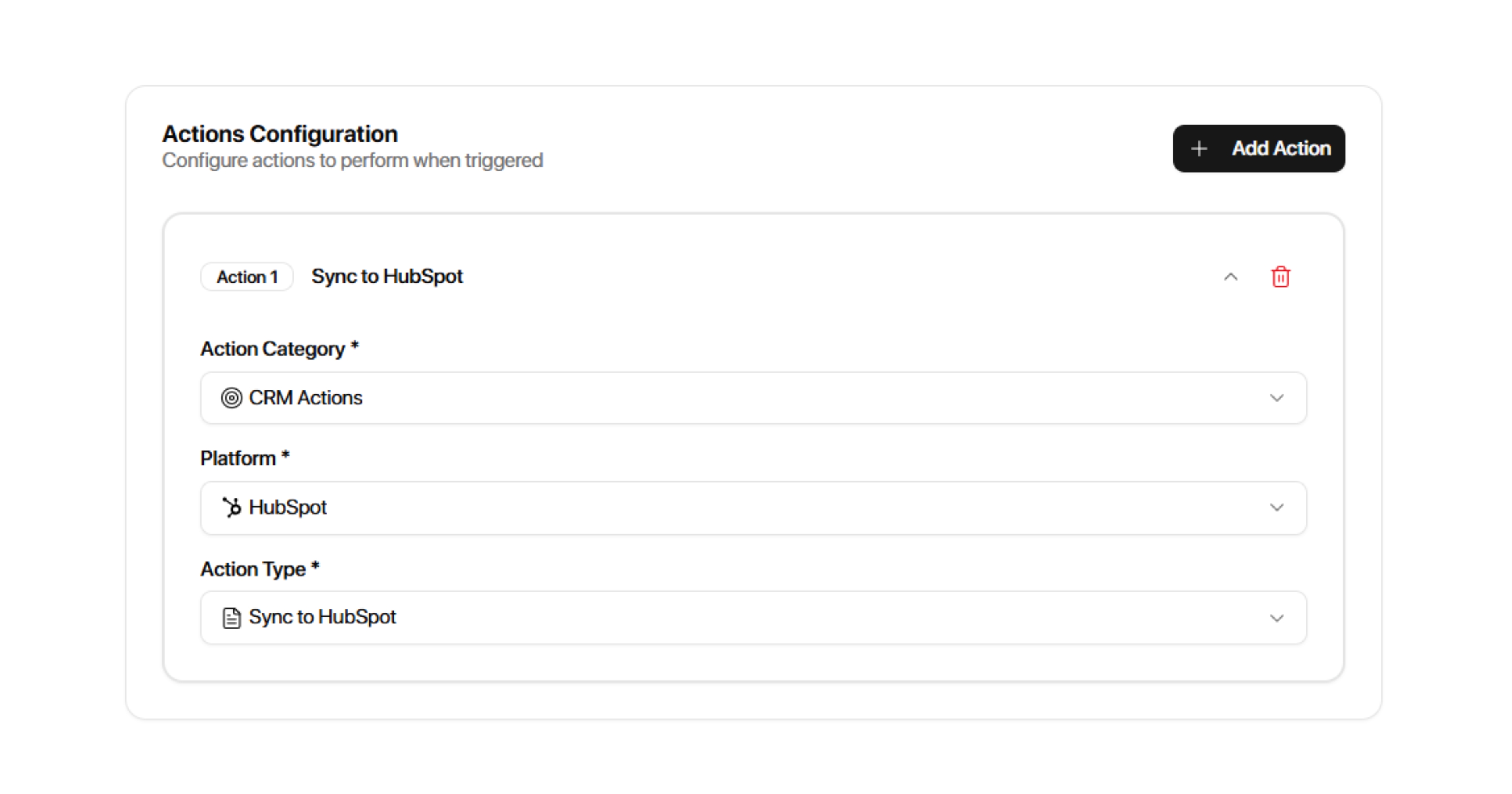
Configuration
Action Category
CRM Actions
Platform
HubSpot
Action Type
Sync to HubSpot
Once selected, the workflow will automatically send supported data to HubSpot whenever the workflow runs.
What Gets Synced?
Depending on the available contact and conversation data, Master Inbox can sync:
Contact Information
Name
First Name
Last Name
Email Address
Domain
Conversation Information
Conversation activity
Message history
Lead engagement data
Lead Activity
Replies
Meeting activity
Workflow activity
Qualification actions
Workflow Data
Information generated through workflow automations can also be included when synced to HubSpot.
Common CRM Workflows
Sync Qualified Leads
Trigger:
Add Label
Condition:
Label = Qualified
Action:
Sync to HubSpot
Purpose:
Automatically push qualified leads into HubSpot.
Sync Interested Prospects
Trigger:
Incoming Message
Condition:
Label = Interested
Action:
Sync to HubSpot
Purpose:
Ensure interested prospects are immediately available in HubSpot.
Meeting Booked Automation
Trigger:
Meeting Booked
Actions:
Add Label → Booked
Move to List → Clients
Sync to HubSpot
Purpose:
Automatically update HubSpot whenever a meeting is booked.
Phone Number Detection Workflow
Trigger:
Found Phone Number
Actions:
Add Label → High Intent
Sync to HubSpot
Purpose:
Capture high-intent prospects and make them available to the sales team.
CRM Sync After Qualification
Trigger:
Add Label
Condition:
Label = Sales Qualified
Action:
Sync to HubSpot
Purpose:
Only sync leads after they reach a defined qualification stage.
Recommended Use Cases
Lead Qualification
Sync prospects when they become:
Interested
Qualified
Sales Qualified
Opportunity
Meeting Management
Sync leads when meetings are
Booked
Rescheduled
Cancelled
High-Intent Lead Tracking
Sync prospects automatically when:
A phone number is detected
A meeting is requested
A proposal is requested
Pipeline Management
Use workflow labels and lists to determine when prospects should be synced into HubSpot.
This helps keep your CRM aligned with your lead management process.
Syncing Selected Leads to HubSpot
To sync only selected leads, such as interested prospects, configure label mapping in Settings → Integrations → HubSpot. Map the relevant MasterInbox label to a HubSpot Lead Status or Lifecycle Stage, select the channels, and save the integration settings.
Label-based syncing applies to new matching label events. To sync an older prospect, open its details and select Add to HubSpot.
Example: Qualified Lead Sync and Slack Alert
Connect HubSpot and Slack in your workspace.
Create a workflow with the Add Label trigger and select the Qualified label.
Add the Sync to HubSpot action.
Add a Slack Notification action and configure the Slack destination.
Test the workflow with a qualified prospect before enabling it for your team.
For field mapping and overwrite settings, see HubSpot Integration.
Best Practices
Sync Only Important Leads
Avoid syncing every conversation automatically.
Instead, use conditions such as:
Interested
Qualified
Meeting Requested
Client
to ensure only relevant records are pushed into HubSpot.
Use Labels as Qualification Stages
Many teams use labels to determine when a lead should be synced.
Example:
Interested
→ Qualified
→ Meeting Booked
→ Client
Each stage can trigger a separate HubSpot sync workflow.
Combine CRM Actions with Notifications
A common workflow setup is:
Trigger:
Meeting Booked
Actions:
Slack Notification
Email Notification
Sync to HubSpot
This ensures both your team and your CRM stay updated.
Example Workflow
Workflow Name:
Qualified Lead CRM Sync
Trigger:
Add Label
Trigger Option:
Qualified
Actions:
Sync to HubSpot
Slack Notification
Result:
Whenever a lead receives the "Qualified" label, the contact is automatically synced to HubSpot and the sales team is notified.
Frequently Asked Questions
Can workflows sync data to HubSpot automatically?
Yes. Once a workflow is active, Master Inbox automatically syncs data whenever the workflow trigger occurs and conditions are met.
Can CRM actions be combined with other actions?
Yes. CRM actions can be used alongside:
Inbox Actions
Notifications
Outbound Tool Actions
Do I need to update HubSpot manually?
No. Workflow automations can keep HubSpot updated automatically.
Can I sync only qualified leads?
Yes. Use workflow conditions such as labels, lists, or other qualification criteria before triggering the sync.