
How to Create an Email Sequence
Create an Email Sequence to automatically send timed follow-ups when a prospect receives a selected label and matches a selected source. You'll configure Enrollment, Followup, Settings, and Preview before running it.
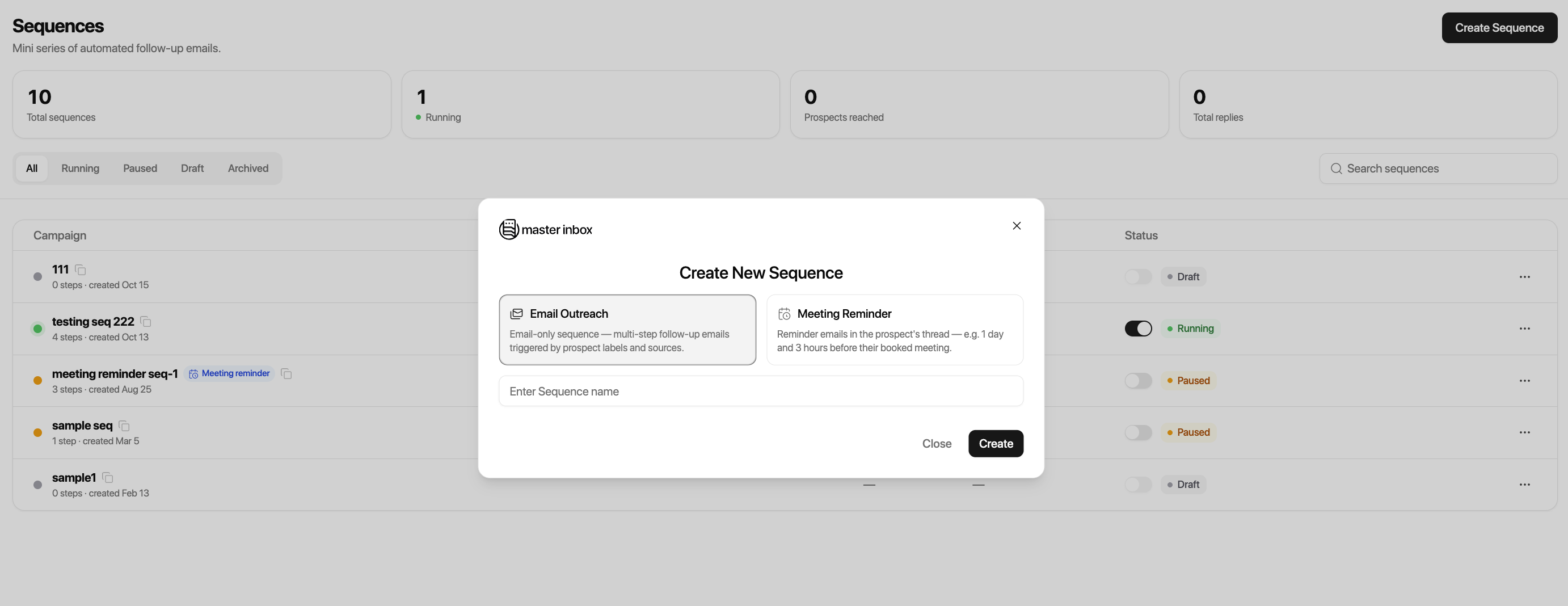
Start in Sequences → Create Sequence → Email Sequence. Give your sequence a recognizable name, such as Interested Prospects Follow-up.
Set Up Your Email Sequence
Step 1: Enrollment
Enrollment decides who automatically enters your sequence. When the selected label is applied to a prospect and the prospect matches the chosen source, the sequence can start sending follow-ups according to its schedule.
Select a label. Choose the label that should trigger enrollment. For example, select Interested, Meeting Request, Information Request, or Pricing Request, depending on the labels in your workspace.
Select a source. Choose the source or sources that the sequence should apply to. Available examples include Google, Custom, Outlook, Leadbird, and Smartlead.
Check both conditions. A prospect with the Interested label qualifies only when their source also matches the selected source. A label applied to a prospect from a different source does not satisfy that configuration.
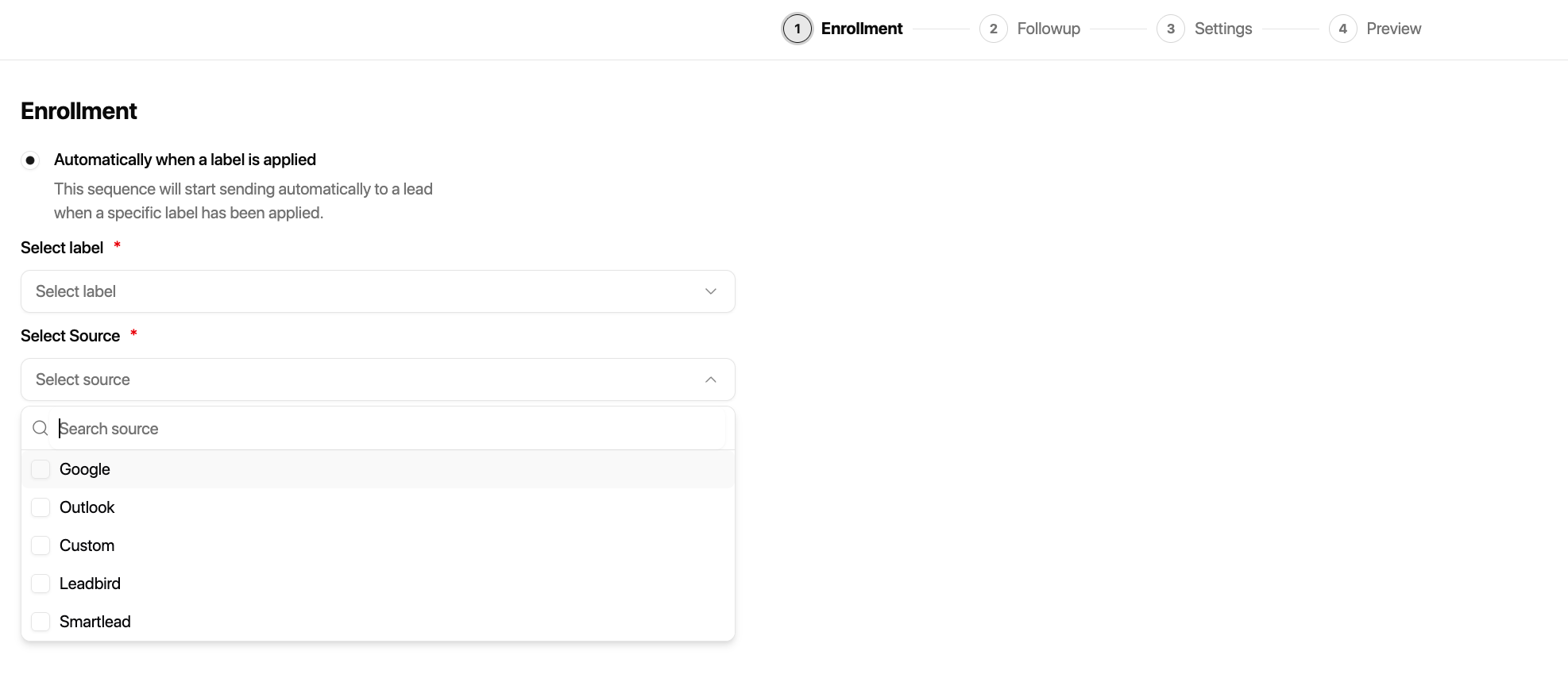
For example, choose Interested as the label and Smartlead as the source to follow up with interested prospects from Smartlead. Continue to Followup.
Step 2: Followup
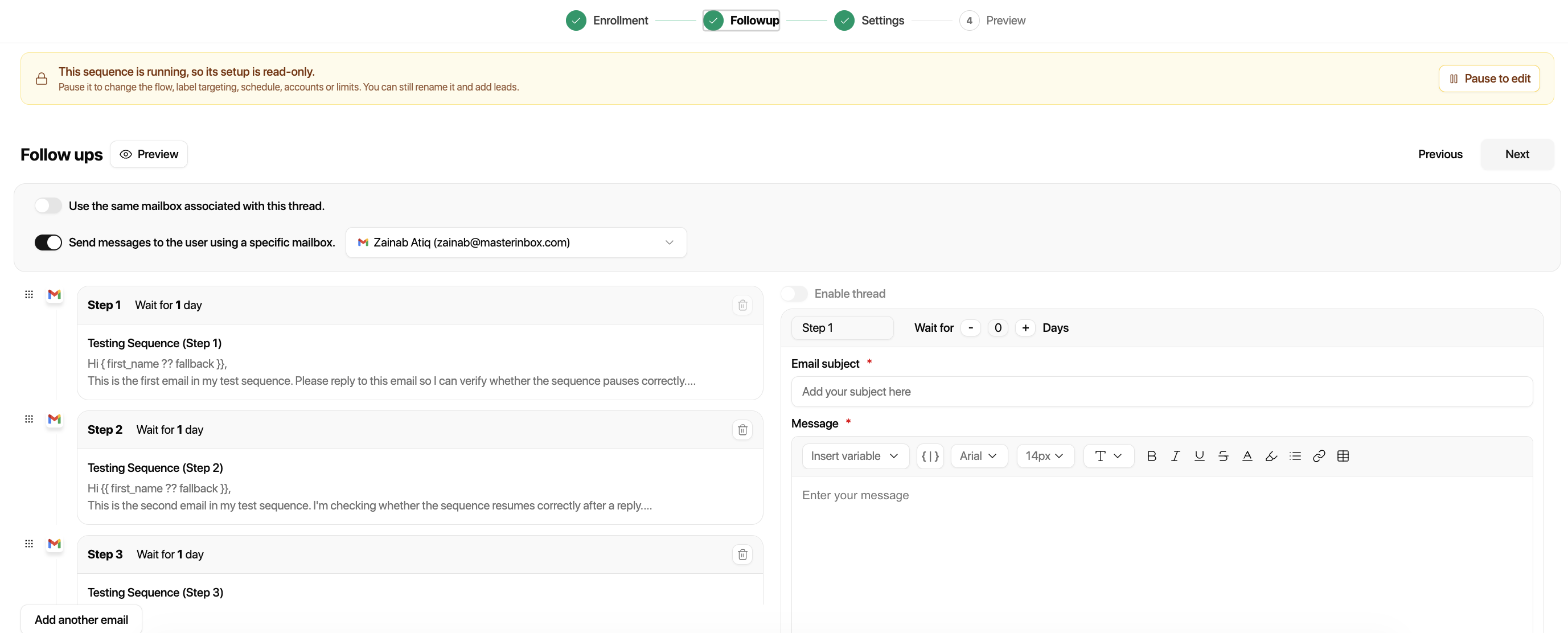
Use Followup to choose the sending mailbox, decide whether messages stay in the same thread, and build your email templates. You can see a preview of the follow-up steps you've added as you build the sequence.
Choose the sending mailbox
Use the same mailbox associated with the thread: Send follow-ups from the mailbox already associated with the prospect's conversation.
Send messages using a specific mailbox: Choose a particular email channel connected to MasterInbox. Use this when you want follow-ups sent from that selected account.
Enable or disable threading
Turn on Enable Thread to send follow-ups within the prospect's existing email thread. Turn it off to send the follow-up as a separate email thread.
Add your first follow-up template
Name the template. Use a clear name, such as Follow-up 1 or Step 1.
Set the cadence. Choose how long to wait before sending this step, such as two days.
Enter the email subject. For example, Following up. If threading is enabled, the follow-up is delivered in the existing conversation.
Write the email message. Add your follow-up copy and insert available personalization variables into the message.
Add more templates. Select Add Another Email to build the next step. Each follow-up can have its own name, delay, subject, and message.
For example, set Follow-up 1 to wait two days, Follow-up 2 to wait four days, and Follow-up 3 to wait three days. Review the follow-up preview before continuing.
Step 3: Settings
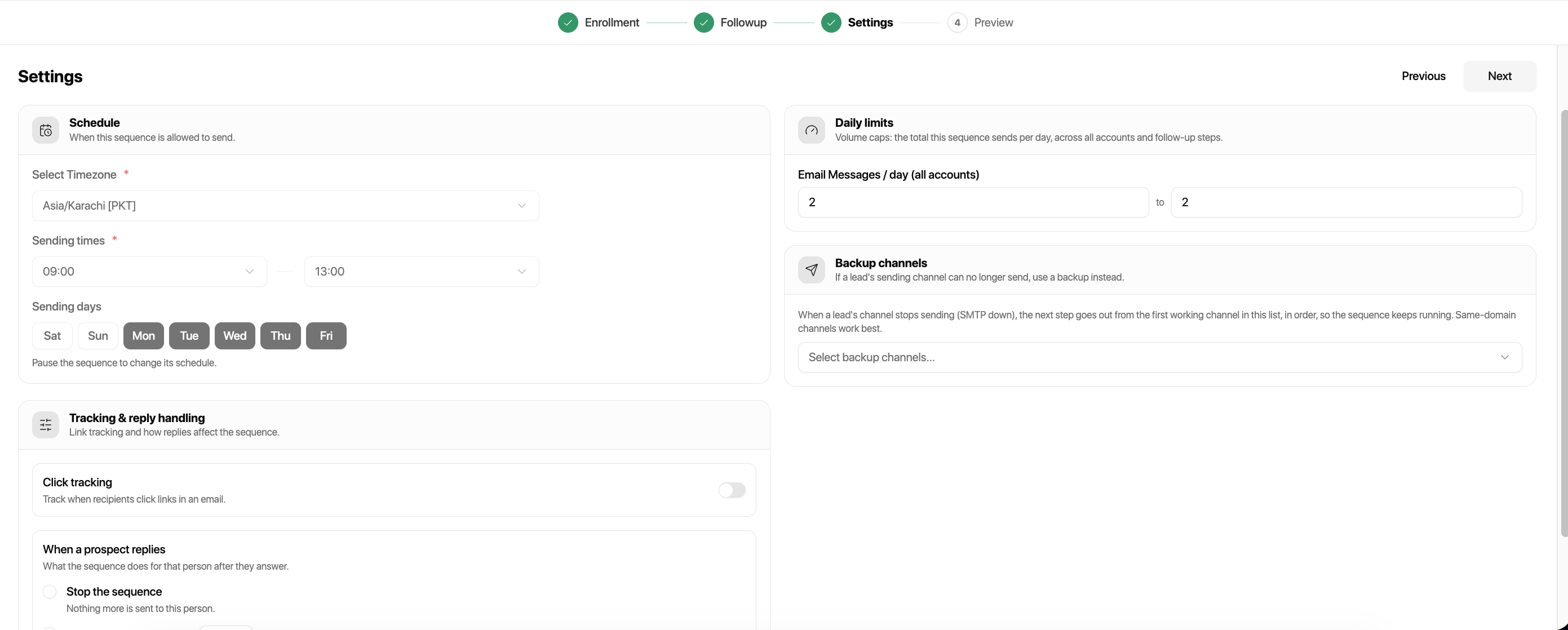
Settings controls when messages can send, how clicks are tracked, what happens when prospects reply, daily sending volume, and backup channels.
Sending schedule
Time zone: Select the time zone for the sequence.
Sending times: Choose the permitted hours, such as 9:00 AM to 5:00 PM.
Sending days: Select the days the sequence may send, such as Monday through Friday or including Saturday and Sunday.
Tracking and reply handling
Turn on Click Tracking to track when recipients click links in your sequence emails.
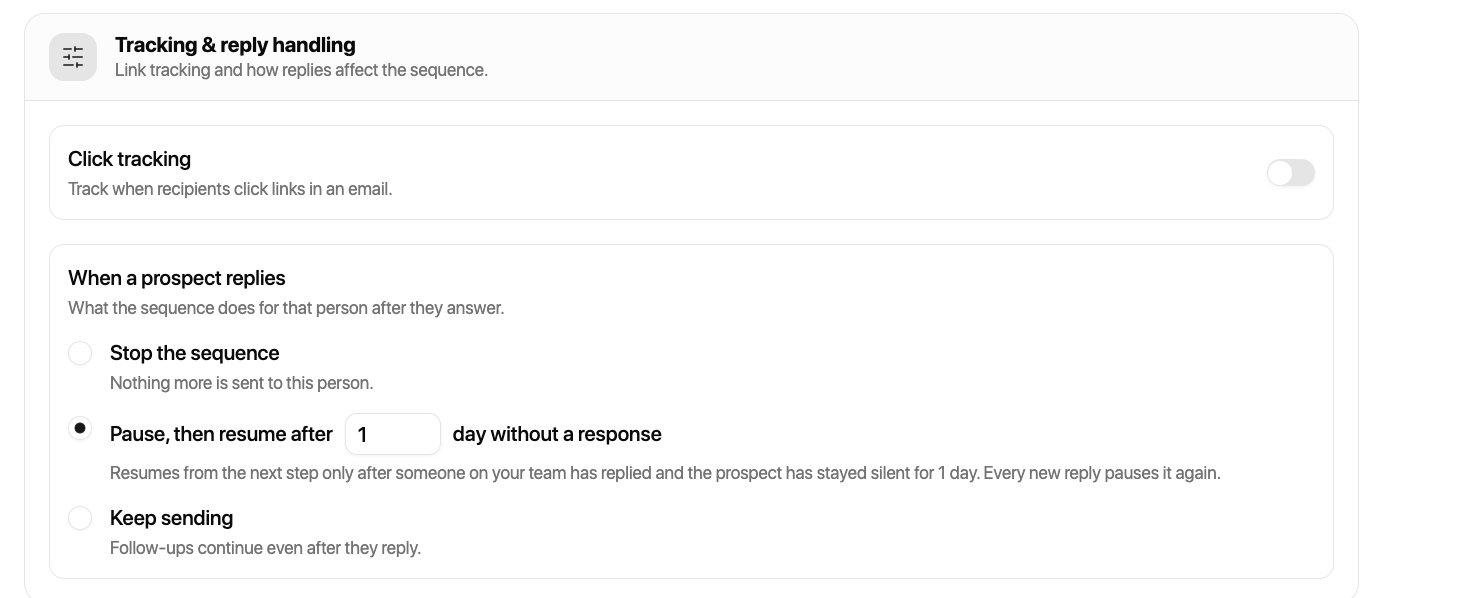
Choose what should happen after a prospect replies:
Stop the sequence: No additional follow-up steps are sent to that prospect.
Pause, then resume after X days without a response: Enter a waiting period, such as one day. After the prospect replies, the sequence pauses. Once someone on your team has replied and the prospect stays silent for the configured period, the sequence resumes at the next follow-up step. Every new prospect reply pauses the sequence again.
Keep sending: Follow-ups continue even if the prospect replies.
Daily limits
Set the total number of email messages the sequence can send per day across all sending accounts and follow-up steps. For example, enter a daily range of 15 to 20 messages to cap the sequence's sending volume.
Backup channels
Add connected email channels to your backup list in the order you want them tried. If a prospect's assigned channel can no longer send, for example because SMTP is down, the next step uses the first working channel in the configured list so the sequence can continue. Channels on the same domain are recommended for consistency.
Step 4: Preview
Use Preview to review the entire sequence before running it. Check the enrollment label and source, follow-up templates and their delays, selected sending mailbox and threading option, and the configured schedule.
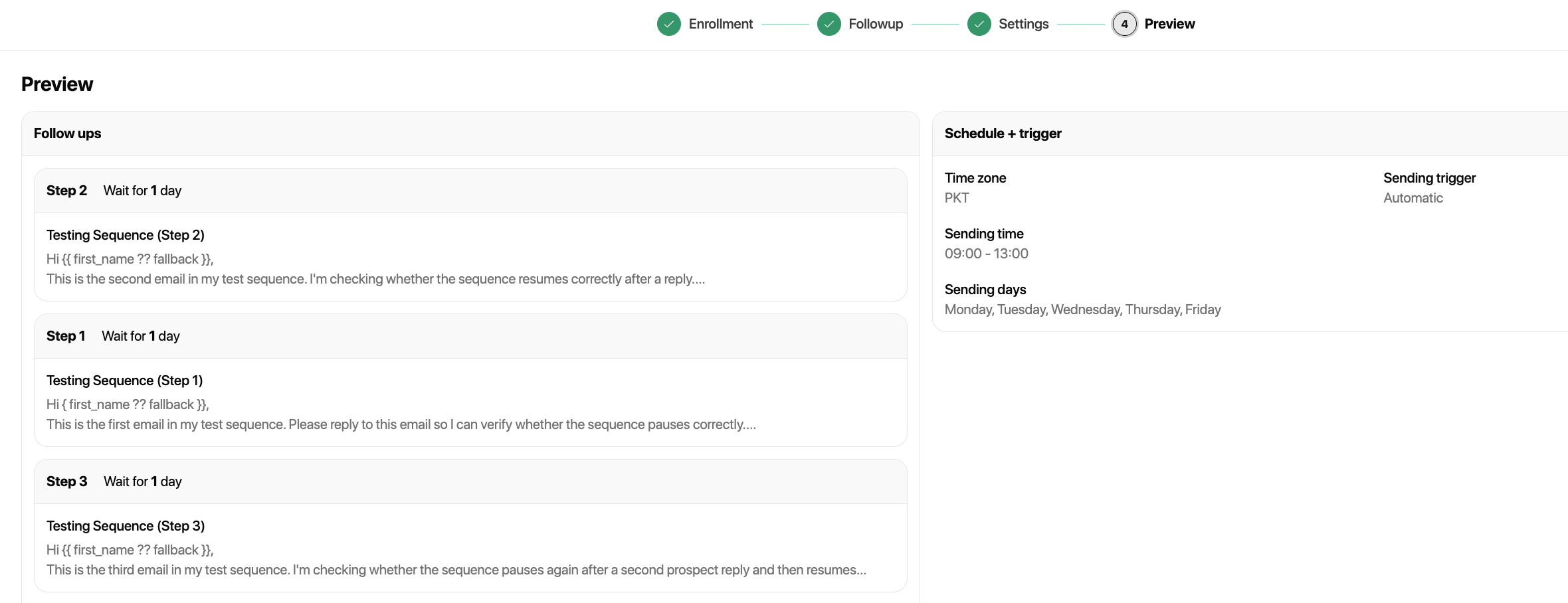
Review the selected time zone, sending times, sending days, and trigger conditions under the schedule and trigger summary. Confirm the message content, variables, reply-handling choice, daily limits, and backup channels before selecting Run Sequence.
Personalize Follow-up Messages With Variables
Variables are inserted while writing an email template in Step 2: Followup. Add them in the message editor so the prospect and sender details can be filled in when the follow-up is sent.
First Name:
{{first_name}}Email:
{{email}}Position:
{{position}}LinkedIn URL:
{{linkedin_url}}Sender Name:
{{sender_name}}Sender First Name:
{{sender_first_name}}Sender Full Name:
{{sender_full_name}}
Example follow-up email
Hi {{first_name}},
Just following up on my previous email. Would you be available for a quick conversation?
Best,
{{sender_first_name}}
If a thread-associated sending mailbox is deleted while a sequence is running, later steps can fail. Disconnecting a mailbox preserves its association for recovery. Backup channels should not be treated as automatic reassignment for a deleted thread-bound mailbox.
After You Run the Sequence
Open the sequence to review Analytics, Configuration, Prospects, and Queue. Use Queue to check which follow-ups are scheduled ahead or due now, and Analytics to monitor sending, replies, and conversions.