
Workflow Actions (Inbox Actions)
Workflow Actions define what happens after a workflow trigger occurs and all conditions are met.
Actions are the final step of every workflow.
Once a trigger activates and conditions match, Master Inbox automatically executes the configured actions.
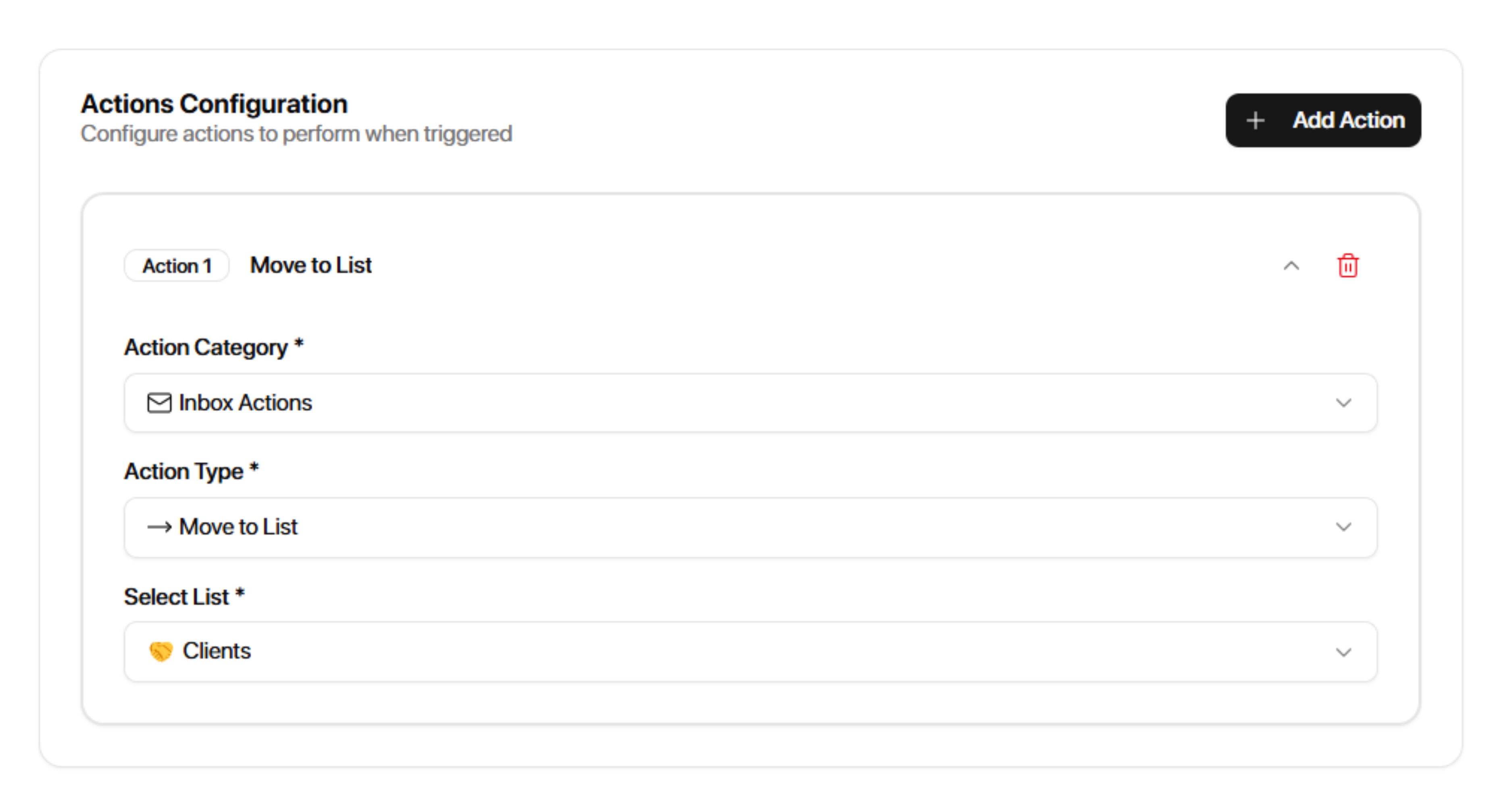
Example:
Incoming Message
→ Label = Interested
→ Move to "Qualified List"
In this example:
Incoming Message is the trigger
Label = Interested is the condition
Moving to "Qualified List" is the action
Action Categories
Master Inbox supports four action categories:
Inbox Actions
Manage conversations directly inside Master Inbox.
Outbound Tools
Control external outreach platforms.
Notifications
Send alerts to team members.
CRM Actions
Sync data with connected CRMs.
Inbox Actions
Inbox Actions allow you to organize, update, enrich, and manage conversations automatically.
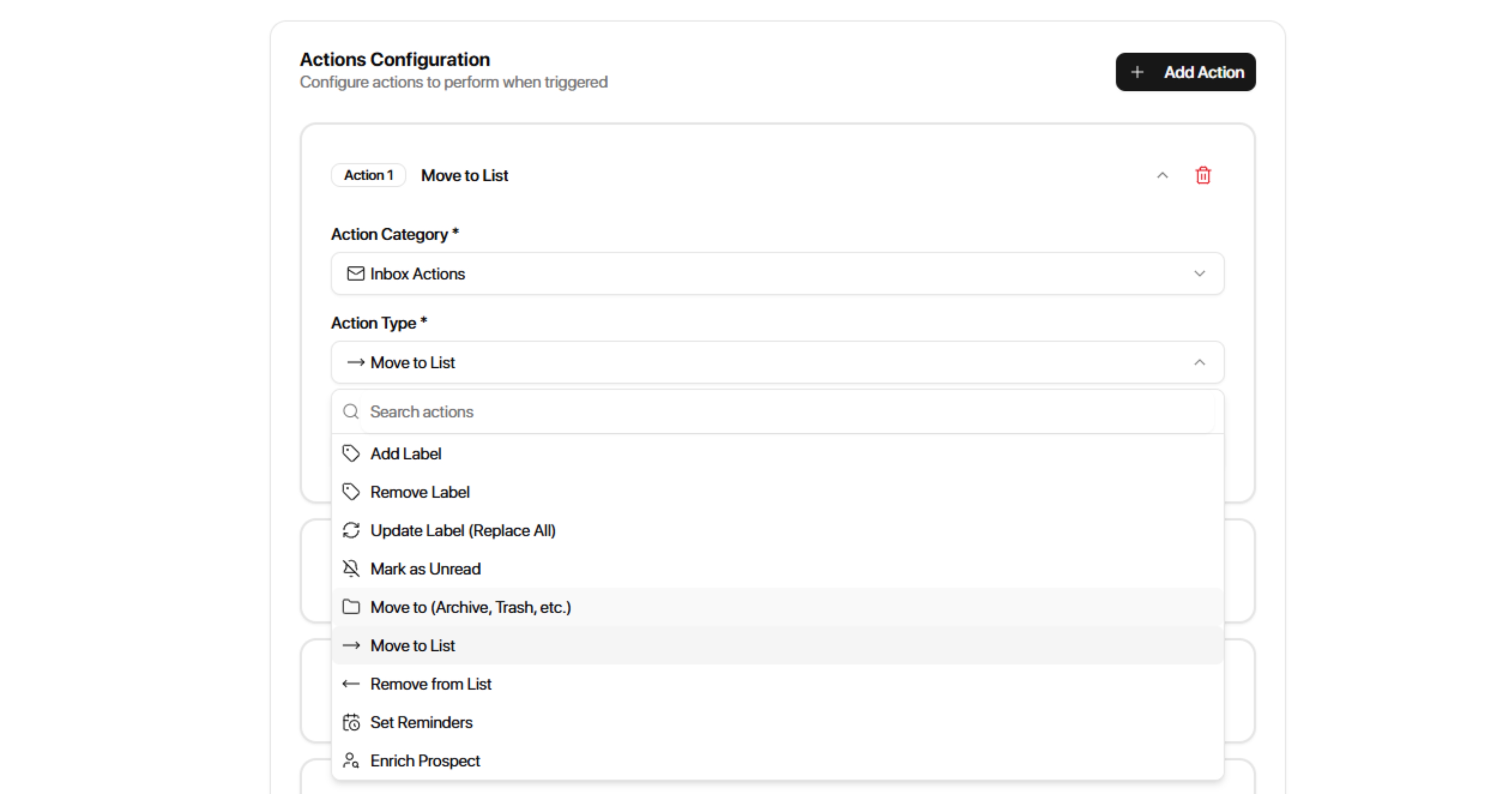
Inbox Actions:
Add Label
Remove Label
Update Label
Mark as Unread
Move to Folder
Move to List
Remove from List
Set Reminder
Forward Email
Enrich Prospect
Add Label
Automatically adds one or more labels to a conversation.
Common Use Cases
Lead qualification
Pipeline management
Team routing
CRM automation
Example
Trigger:
Found Phone Number
Action:
Add Label → High Intent
Whenever a phone number is detected, the conversation is automatically labeled as High Intent.
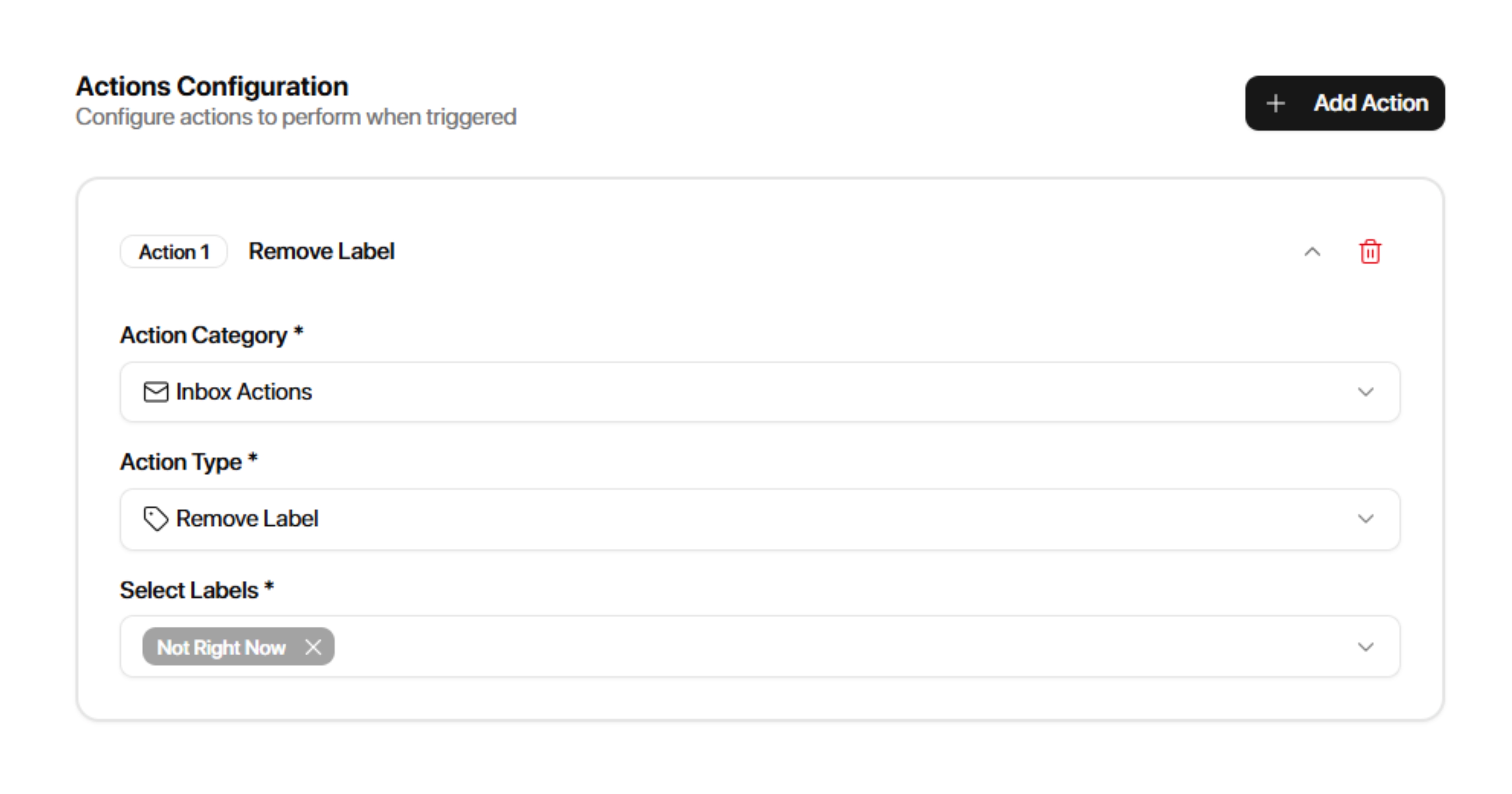
Remove Label
Automatically removes labels from a conversation.
Common Use Cases
Stage transitions
Cleanup workflows
Automation management
Example
Trigger:
Meeting Booked
Action:
Remove Label → Interested
After a meeting is booked, the Interested label is removed automatically.
Update Label
Replaces existing labels with new labels.
Common Use Cases
Lead stage progression
Pipeline updates
Automated qualification
Example
Replace:
Interested
With:
Qualified
Mark as Unread
Marks a conversation as unread.
Common Use Cases
Escalation workflows
Team review queues
Follow-up processes
Example
Trigger:
Incoming Message
Condition:
Label = High Priority
Action:
Mark as Unread
Move to Folder
Moves conversations into a selected folder.
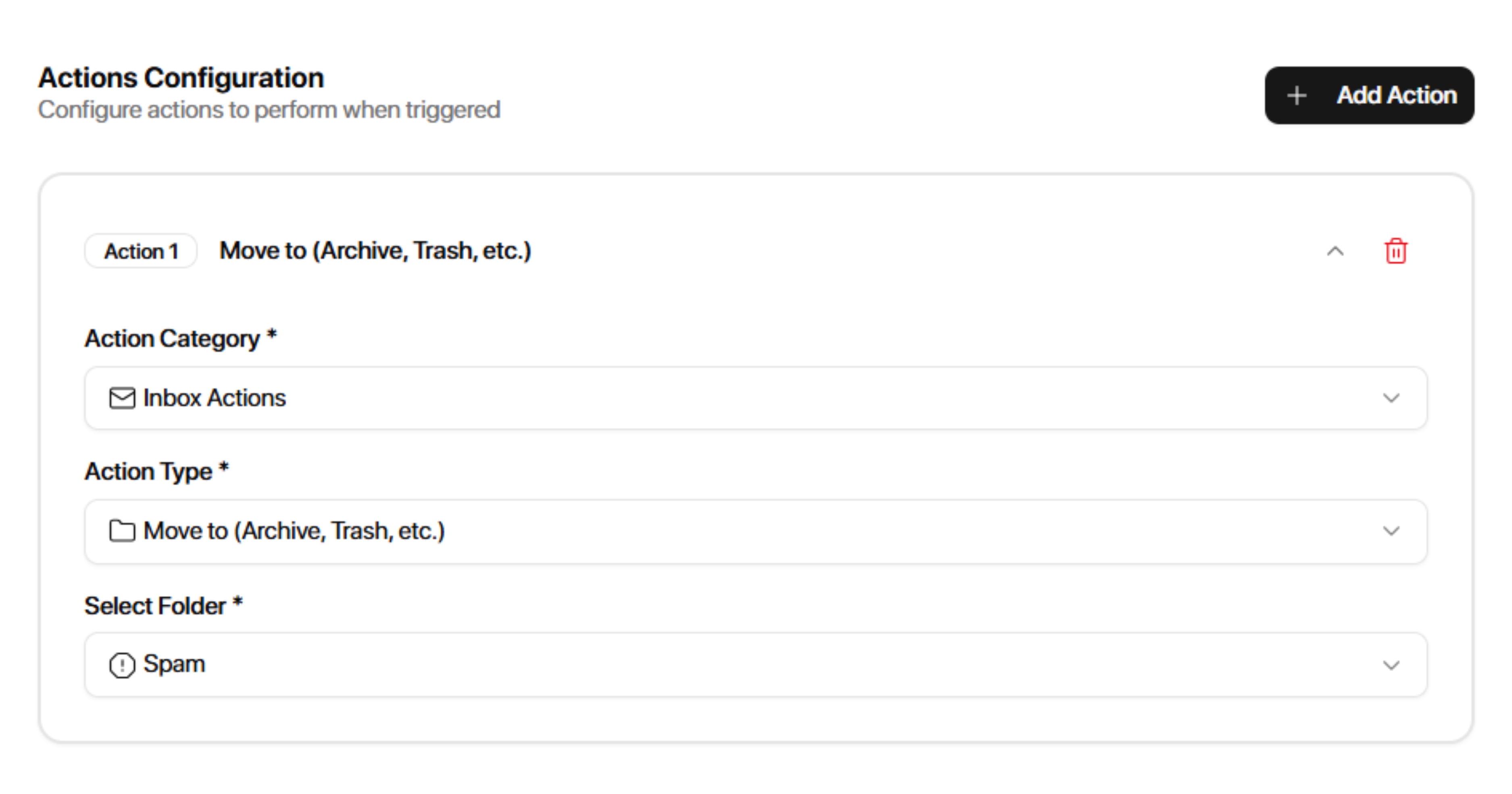
Archive
Marketing
Spam
Trash
Common Use Cases
Inbox cleanup
Conversation organization
Lead management
Example
Trigger:
Add Label
Condition:
Label = Not Interested
Action:
Move to Archive
Move to List
Moves a conversation into a selected list.
Common Use Cases
Pipeline management
Lead routing
Stage progression
Example
Trigger:
Add Label
Condition:
Label = Qualified
Action:
Move to List → Qualified Leads
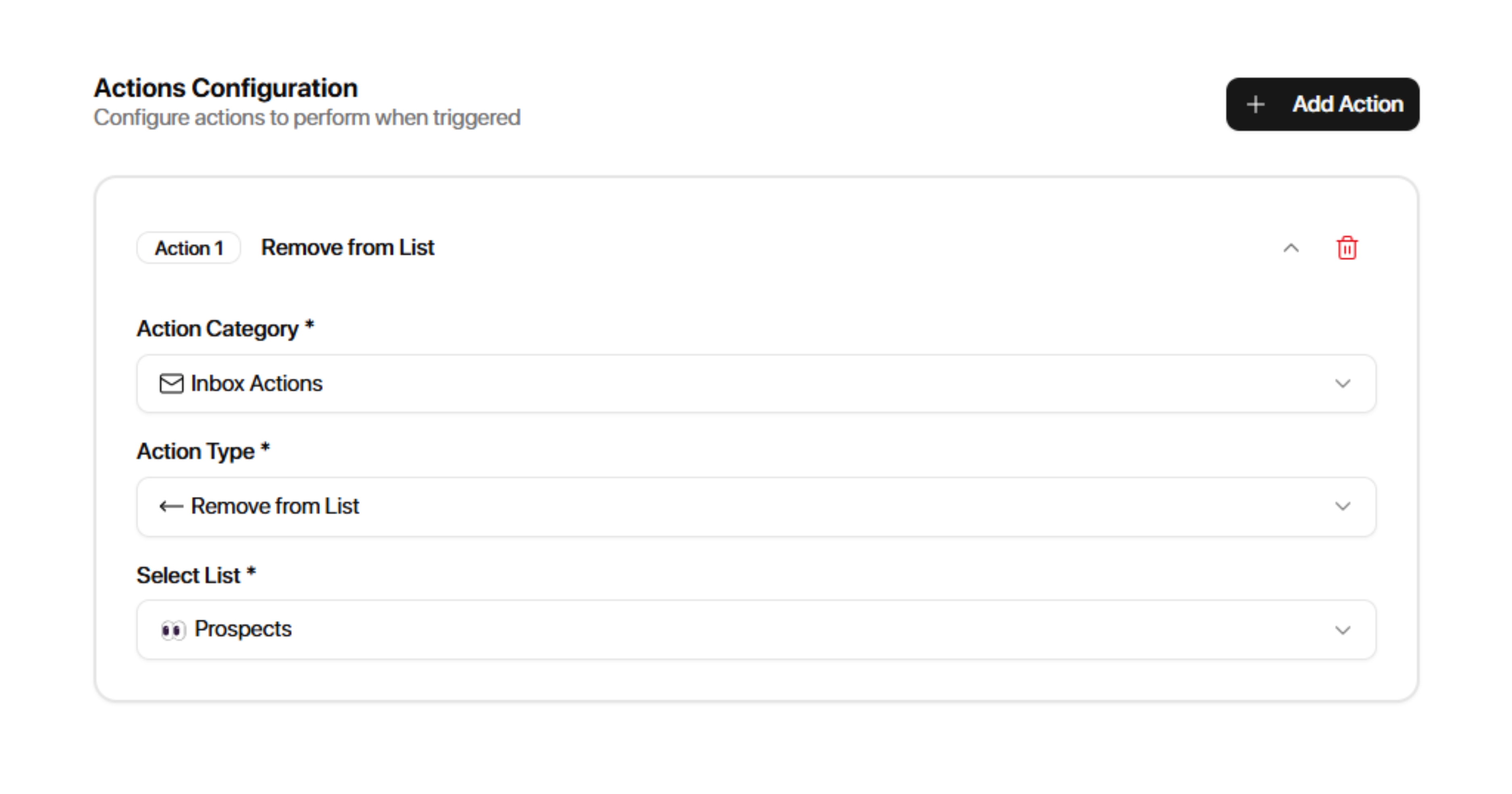
Remove from List
Removes a conversation from a selected list.
Common Use Cases
Pipeline transitions
Workflow cleanup
Stage changes
Example
Trigger:
Meeting Booked
Action:
Remove from List → Prospects
Set Reminder
Automatically creates a reminder for a conversation.
Configuration
Specify the reminder timeframe.
Examples:
Hours
Days
Months
Common Use Cases
Follow-up reminders
Lead management
Customer success workflows
Example
Trigger:
Incoming Message
Action:
Set Reminder → 2 Days
Forward Email
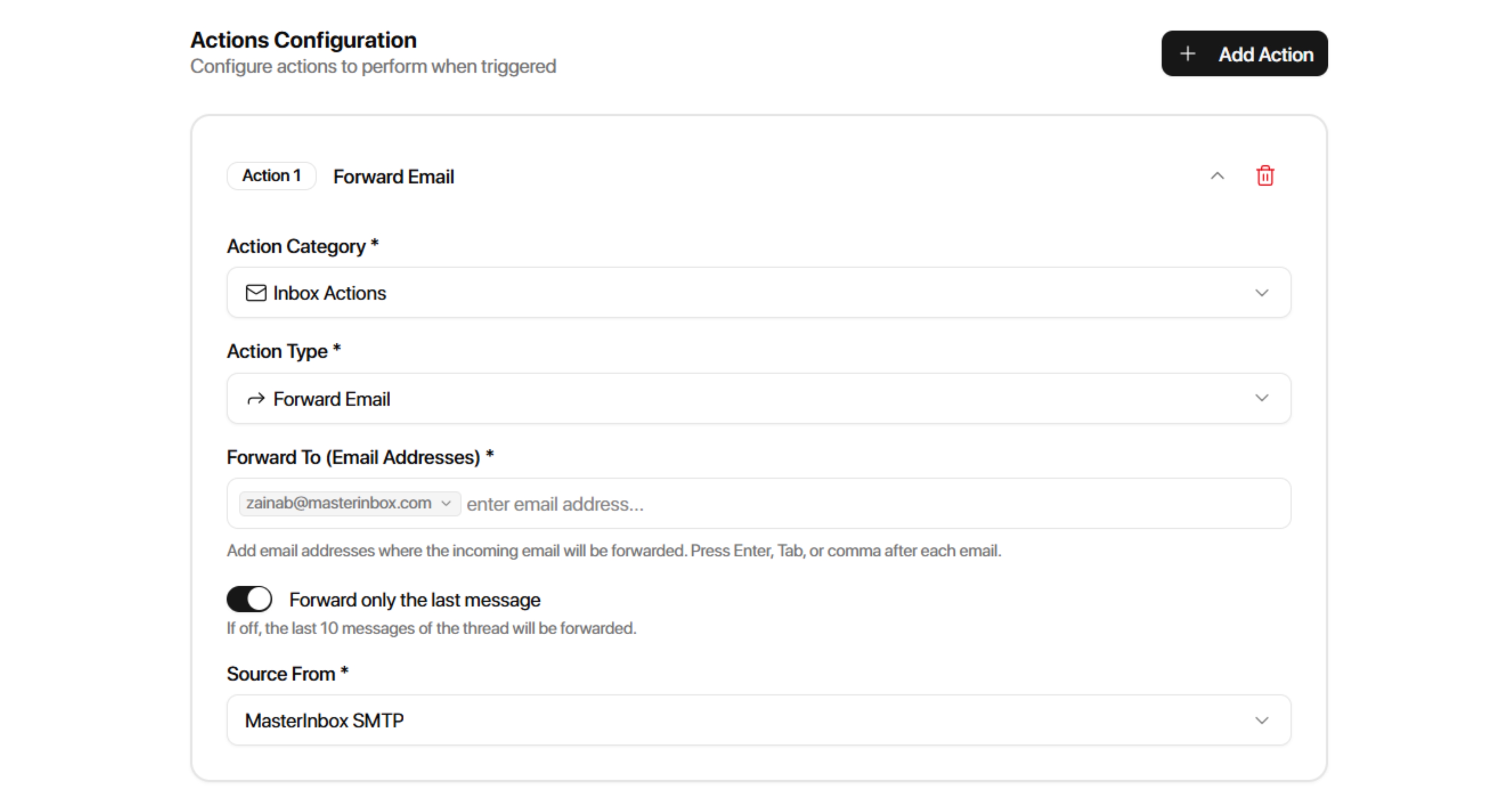
Automatically forwards conversations to another email address.
Configuration
Forward To
Enter the email address that should receive the forwarded message.
Source From
Master Inbox SMTP
Common Use Cases
Escalate qualified leads
Notify managers
Route conversations to support teams
Share conversations with stakeholders
Example
Trigger:
Incoming Message
Condition:
Label = Positive
Action:
Forward Email
Forward To:
[email protected]
Whenever a positive lead replies, the conversation is automatically forwarded.
Enrich Prospect
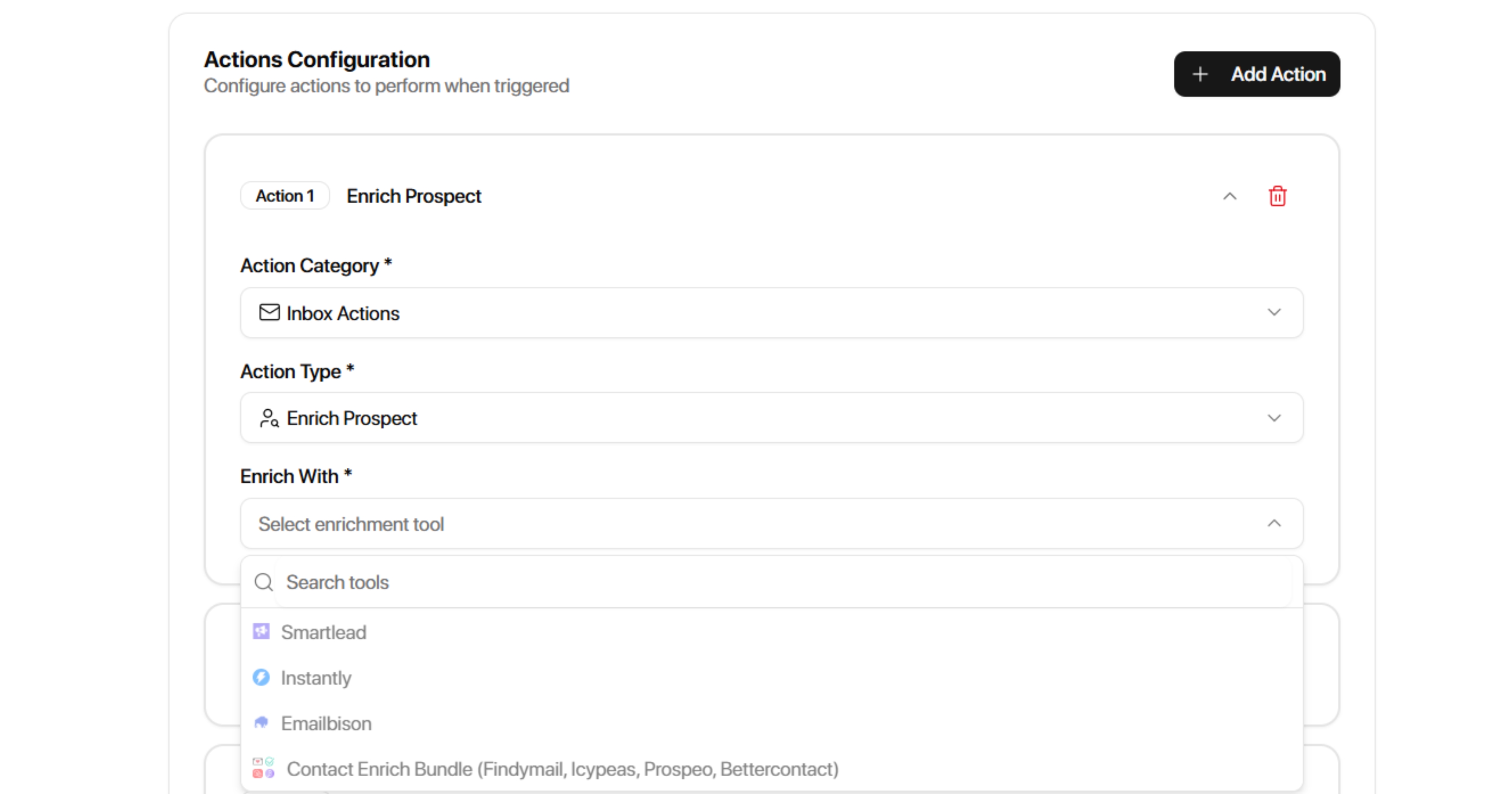
Automatically enriches prospect data using connected enrichment providers.
Supported Providers
Smartlead
Instantly
EmailBison
PlusVibe
Waterfall (BetterContact)
Choose Smartlead, Instantly, EmailBison, PlusVibe, or Waterfall. BetterContact is part of Waterfall, not a separate option.
Phone enrichment skips a prospect who already has a phone number. Enrichment Completed fires when an enrichment job actually runs and finishes, including when the lookup finds no number. A skipped job does not fire this trigger.
Example: Add Label (Interested) → Phone Number is empty → Enrich Prospect (Waterfall). Use Enrichment Completed workflows with Phone Number is empty or is not empty to handle the results.
Common Use Cases
Lead qualification
Data enrichment
CRM preparation
Prospect research
Example
Trigger:
Found Phone Number
Action:
Enrich Prospect
Provider:
Instantly
Slack Notification
Under Notifications, select Slack Notification. Click Connect Slack to authorize the integration and automatically populate the webhook URL. Select the payload fields, then use Test to send a sample notification.
Draft and Reply from Slack
Enable Draft and reply from Slack to edit and send email replies from a Slack notification. You can edit the To address, From address, subject, CC, and email body.
Example: Add Label (positive labels) → Slack Notification → Connect Slack → choose payload fields → enable Draft and reply from Slack.
For held drafts, use AI Draft Held (Reply Agent) as the trigger. See Notifications for more details.
Action Best Practices
Keep Actions Relevant
Only add actions that support the workflow's goal.
Avoid adding unnecessary actions that create complexity.
Use Labels as Workflow Building Blocks
Many advanced workflows use labels as the foundation for automation.
Example:
Add Label → Qualified
Then trigger additional workflows from that label.
Combine Multiple Actions
A single workflow can perform multiple actions.
Example:
Trigger:
Meeting Booked
Actions:
Add Label → Booked
Move to List → Clients
Sync to HubSpot
Slack Notification
This allows complete automation from a single event.
Use Forward Email Sparingly
Forwarding every conversation can create noise.
Consider using conditions such as:
Label
Source
Channel
to forward only important conversations.