
What Are Workflows?
Workflows allow you to automate actions inside Master Inbox based on events that occur in your workspace.
Instead of manually organizing conversations, sending notifications, assigning leads, updating your CRM, or managing outreach campaigns, workflows automatically perform these actions for you.
A workflow listens for a specific event, checks whether any conditions match, and then performs one or more actions automatically.
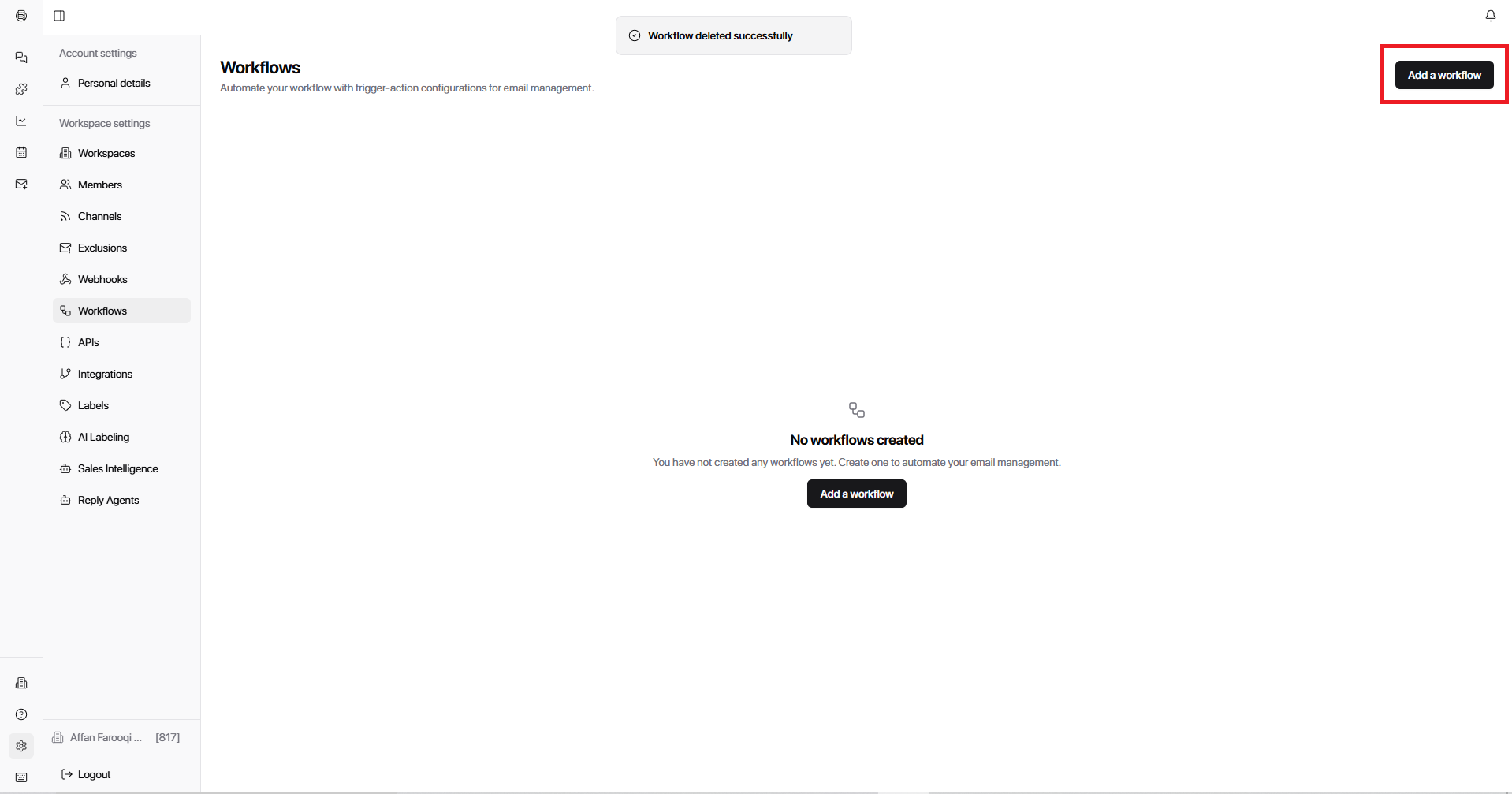
How Workflows Work
Every workflow follows the structure:
Trigger → Conditions → Actions
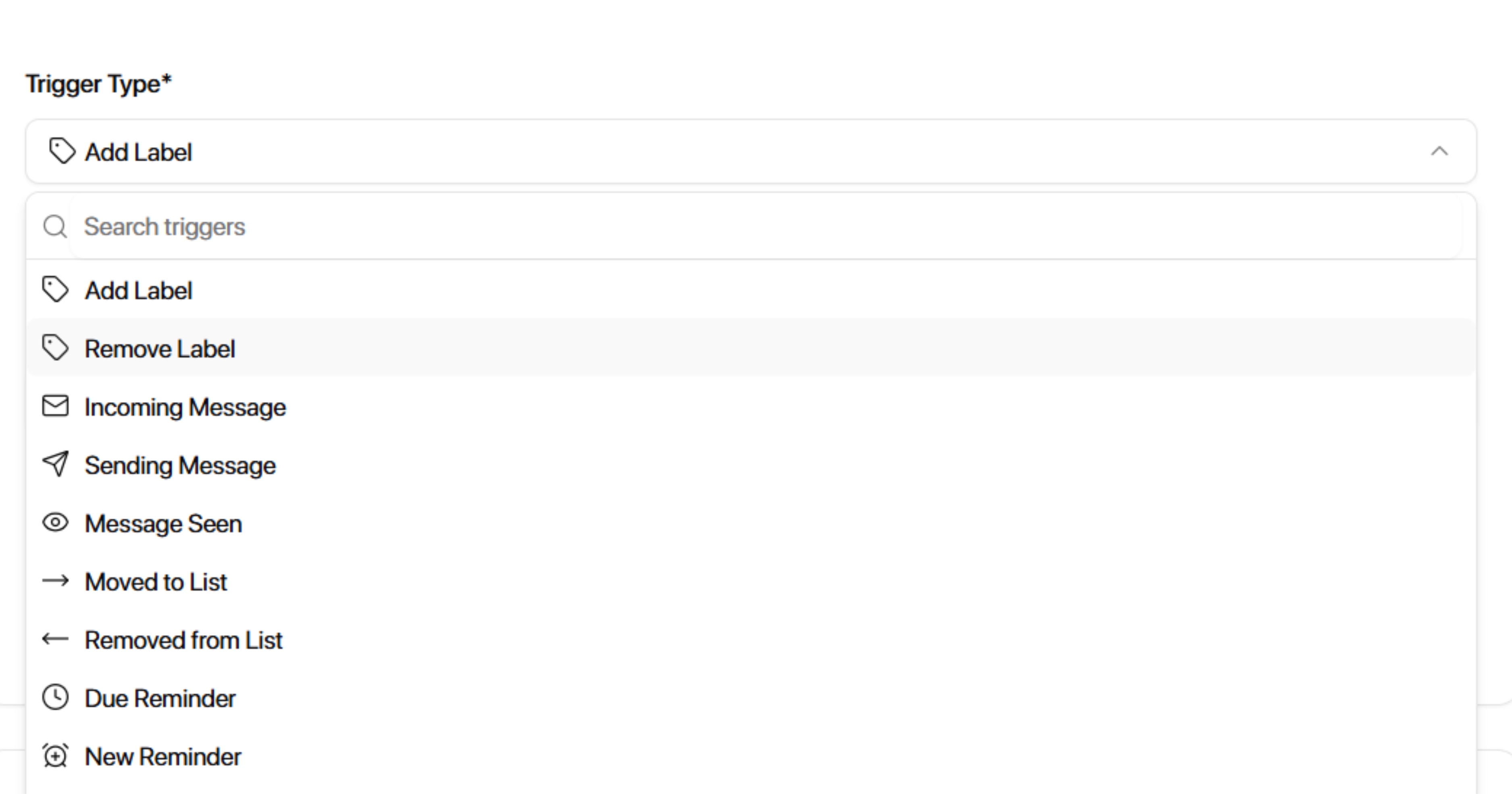
Trigger
A trigger is the event that starts the workflow.
Examples:
Incoming Message
Add Label
Meeting Booked
Found Phone Number
Incoming Webhook
Conditions
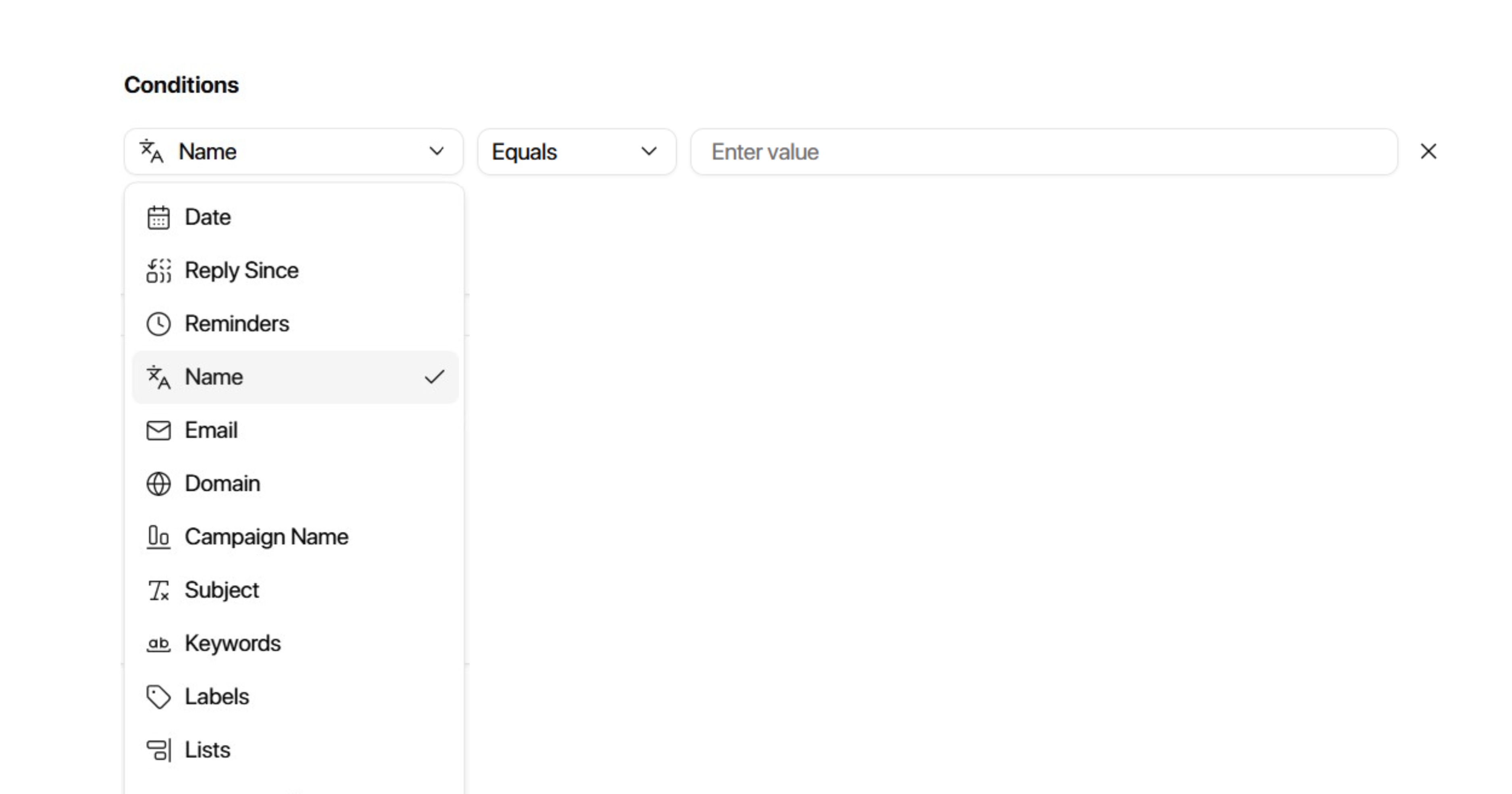
Conditions are optional filters that determine which condition the workflow should run on.
Examples:
Label = Interested
Source = HeyReach
Channel = Sales Team Mailbox
The domain contains company.com
Actions
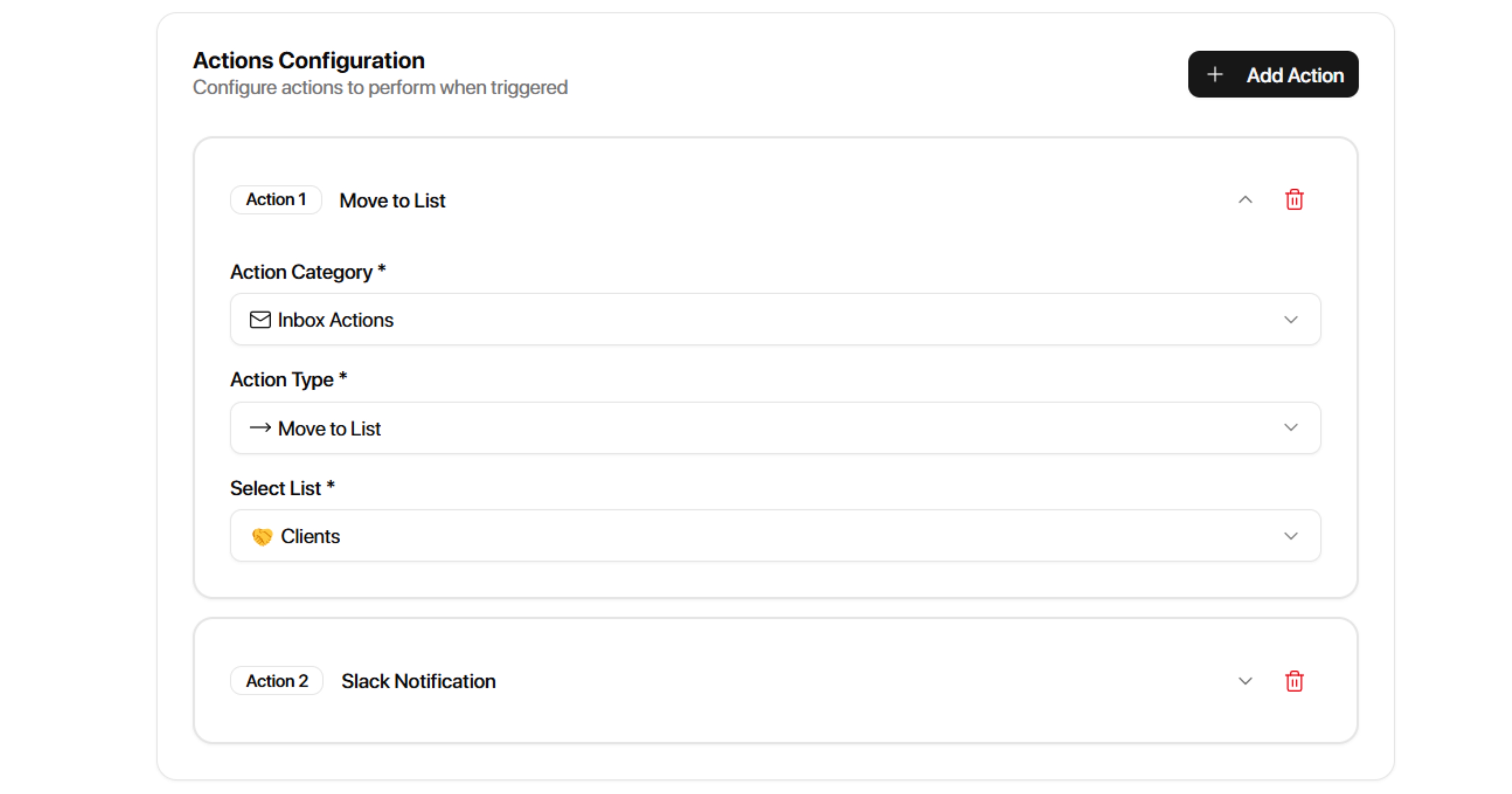
Actions define what happens after the trigger occurs and all conditions are met.
Examples:
Add Label
Move to List
Send Slack Notification
Send Email Notification
Forward Email
Sync to HubSpot
Example workflow:
Trigger:
Incoming Message
Condition:
Label = Interested
Action:
Slack Notification
Whenever a prospect labeled "Interested" sends a new message, Master Inbox automatically sends a Slack notification to your team.
Workflow Components
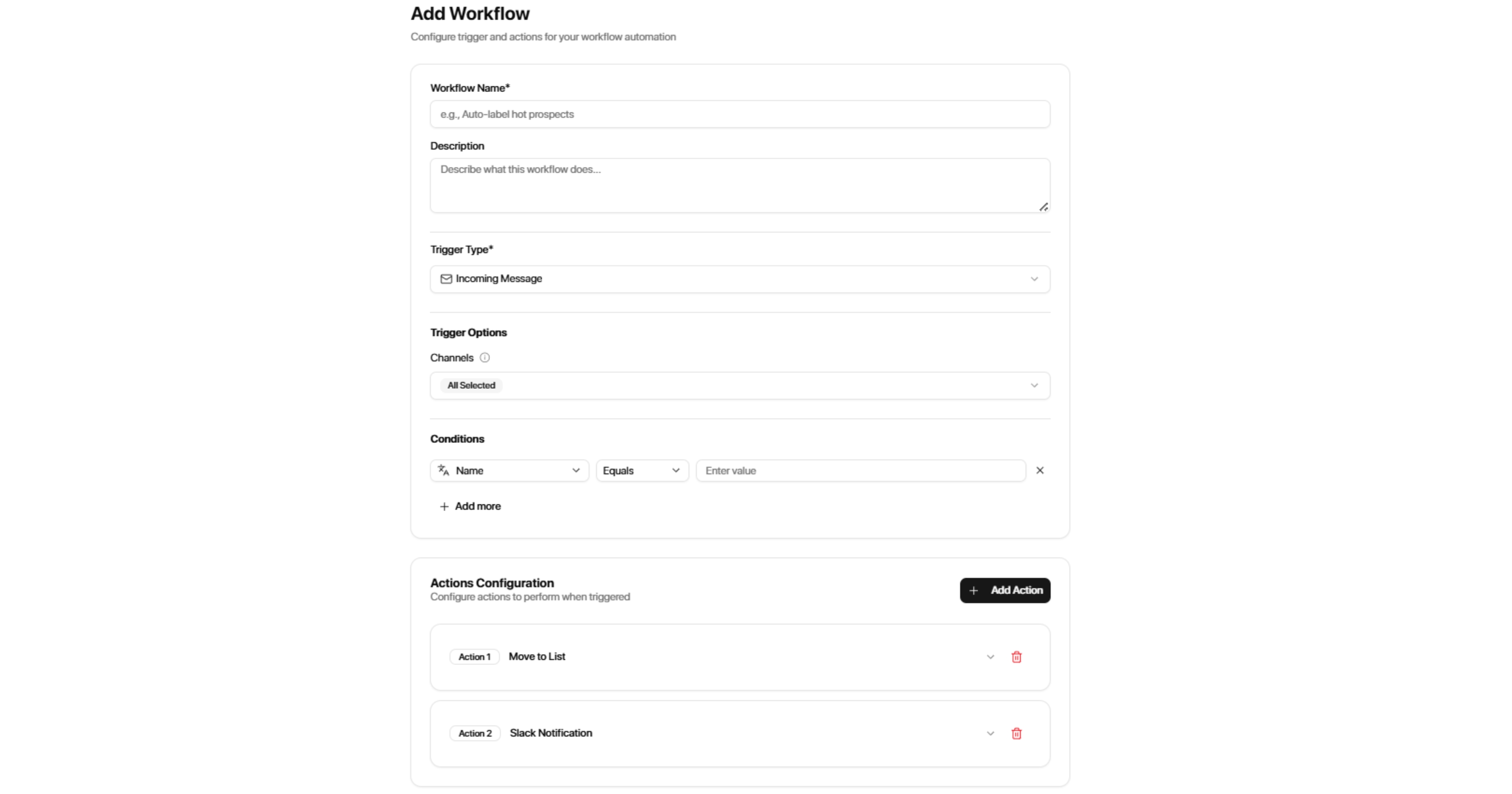
Every workflow contains the following sections:
Workflow Name
A unique name that helps identify the workflow.
Example:
Interested Lead Alerts
Meeting Booked Automation
CRM Sync Workflow
Workflow Description
A short explanation of what the workflow does.
Example:
"Notify the sales team whenever an interested lead replies."
Trigger Type
Defines the event that starts the workflow.
Trigger Options
Allows you to specify exactly which item should activate the workflow.
Examples:
Specific label
Specific channel
Specific list
Conditions
Optional filters that determine when the workflow should run.
Action Configuration
Defines what actions Master Inbox performs after the workflow is triggered.
Workflow Triggers and Conditions
Alongside the triggers above, workflows can react to AI Draft Held (Reply Agent), AI Error, and Enrichment Completed events.
Use the Day condition to select one or more weekdays for Incoming Message and Add Label workflows. The condition repeats weekly and follows your workspace timezone.
The Phone Number condition lets you check whether a prospect phone number is empty or is not empty. This is useful when deciding whether a prospect needs enrichment.
Example: Notify Your Team in Slack
Use an Add Label workflow to notify your team when a prospect receives a positive label.
Select Add Label as the trigger and choose the positive labels you want to monitor.
Add the Slack Notification action.
Select Connect Slack and choose which prospect fields appear in the notification.
Enable Draft and reply from Slack if teammates should send email replies from Slack.
Use Test to verify the notification before enabling the workflow.
From Slack, teammates can edit the To address, From address, subject, CC, and email body before sending. You can also use AI Draft Held (Reply Agent) as the trigger to alert a teammate when a draft needs review.
For detailed instructions, see Common Automation Recipes and Notifications.
Example: Enrich a Prospect with No Phone Number
Trigger: Add Label (Interested)
Condition: Phone Number is empty
Action: Enrich Prospect (Waterfall)
Create a separate workflow with the Enrichment Completed trigger to take action after enrichment finishes. Use Phone Number is empty or is not empty to handle the result.
If a prospect already has a phone number, phone enrichment is skipped and Enrichment Completed does not fire for that skipped job.
Common Use Cases
1. Lead Reply Notifications
Notify your team whenever a lead replies.
2. Lead Qualification
Automatically organize qualified leads into dedicated lists.
3. Meeting Management
Automatically update conversations when meetings are booked, rescheduled, or cancelled.
4. CRM Synchronization
Keep HubSpot updated automatically.
5. Email Forwarding
Forward important conversations to managers, executives, or support teams.
6. Outreach Automation
Stop outreach campaigns automatically when prospects reply.
7. Lead Enrichment
Enrich prospect information using connected enrichment tools.
8. External Automations
Trigger workflows from external systems using webhooks.
Why Use Workflows?
Workflows help teams:
Respond faster
Reduce manual work
Organize conversations automatically
Keep CRMs up to date
Improve lead management
Standardize internal processes
Scale operations efficiently