
How to Use Keyboard Shortcuts
What you'll learn
This guide shows you where to find keyboard shortcuts in Master Inbox and how to use them to navigate faster, manage labels, and move through conversations without reaching for your mouse.
Keyboard shortcuts let you work faster by keeping your hands on the keyboard. Instead of clicking through menus and buttons, you can archive threads, apply labels, switch workspaces, and navigate your inbox with simple key combinations.
Where to find keyboard shortcuts
All available shortcuts are listed in the Keyboard Shortcuts panel:
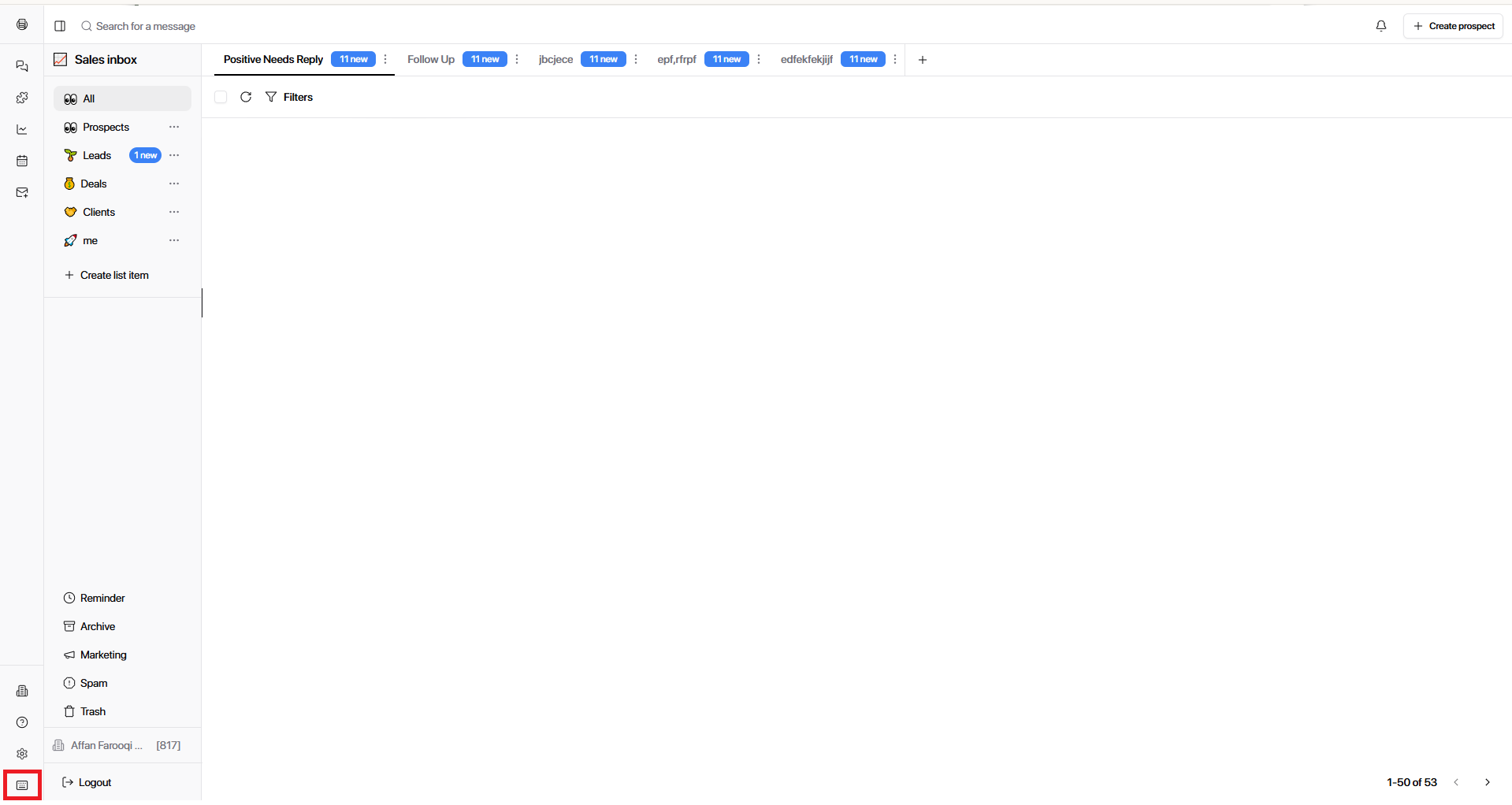
Click Keyboard Shortcuts.
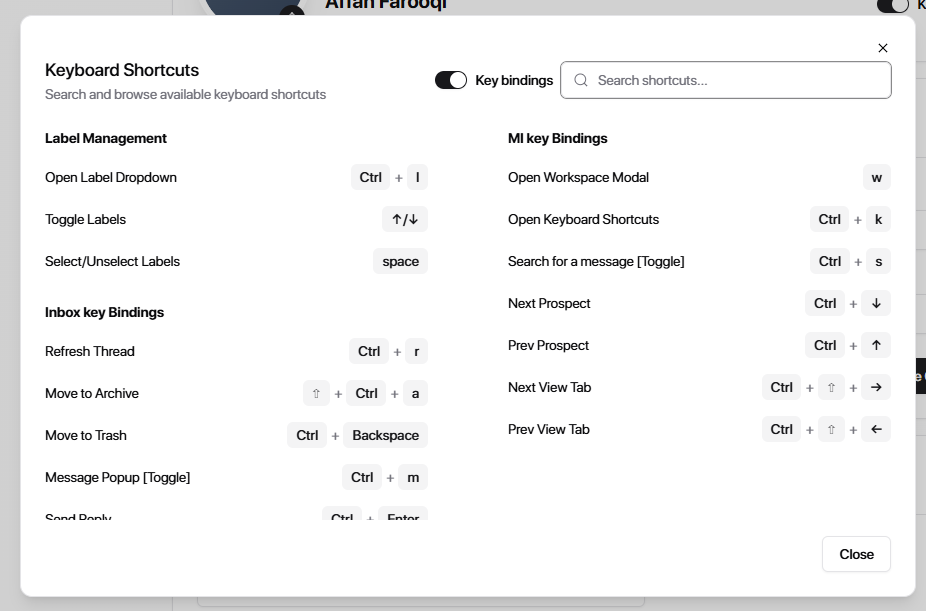
From this panel, you can view all shortcuts, search for a specific action, and enable or disable individual bindings.
Label Management Shortcuts
Use these shortcuts when you're inside a conversation and need to apply or remove labels quickly.
Action | Shortcut | What it does |
|---|---|---|
Open Label Dropdown | Ctrl + I | Opens the label selection menu so you can browsing labels. |
Toggle Labels | ↑ / ↓ | Moves up or down through available labels in the dropdown. |
Select / Unselect Labels | Space | Adds or removes the currently highlighted label from the conversation. |
You can label multiple conversations in the time it normally takes to label one by using these shortcuts instead of clicking through the label menu.
Inbox Key Bindings
These shortcuts work directly inside a conversation thread.
Action | Shortcut | What it does |
|---|---|---|
Refresh Thread | Ctrl + R | Reloads the current conversation to see new replies or updated status. |
Move to Archive | ↑ + Ctrl + A | Archives the current thread so it's out of your main inbox but not deleted. |
Move to Trash | Ctrl + Backspace | Sends the thread to trash. Be careful, this is a fast action with no confirmation. |
Message Popup (Toggle) | Ctrl + M | Opens or closes a popup view of the message, useful for full-screen focus or copying text. |
Send Reply | Ctrl + Enter | Sends your reply to the prospect immediately. |
Navigation Shortcuts
These shortcuts help you navigate your entire prospect or conversation list quickly.
Action | Shortcut | What it does |
|---|---|---|
Open Workspace Modal | Ctrl + W | Opens the workspace switcher. Useful if you jump between different teams or clients. |
Open Keyboard Shortcuts | Ctrl + K | Opens the shortcuts reference panel without navigating to Settings. |
Search for a Message (Toggle) | Ctrl + S | Opens a quick search overlay to find any message across your inbox. Press again to close. |
Next Prospect | Ctrl + ↓ | Moves to the next prospect in your list. |
Previous Prospect | Ctrl + ↑ + | Moves to the previous prospect in your list. |
Next View Tab | Ctrl + ↑ + → | Switches to the next tab in your current view (e.g., from Open to Done). |
Previous View Tab | Ctrl + ↓ + ← | Switches to the previous tab in your current view. |
Note: Some key combinations may vary depending on your operating system. On macOS, use ⌘ (Command) instead of Ctrl. If a shortcut doesn't work as expected, check the Keyboard Shortcuts panel in Settings for the correct binding for your system.
Enable or disable shortcuts
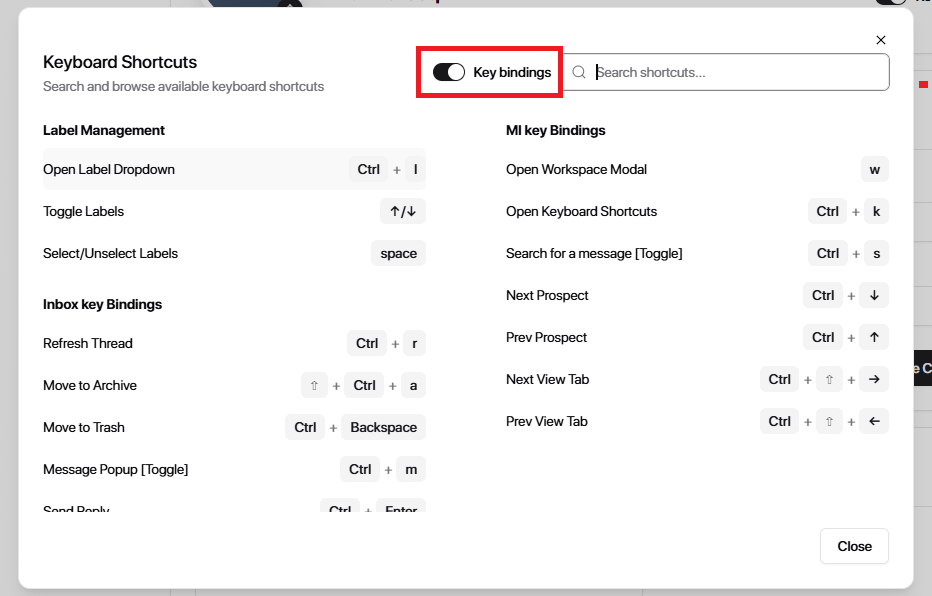
You can completely disable key bindings by toggling off the ‘Key Bindings’ option
Next steps
Now that you know how to navigate faster with keyboard shortcuts, here are a few related features to explore:
Set up custom views to filter conversations by status
→ See: How to Set Up a Filter in a WorkspaceCreate labels to organize your inbox
→ See: How to Create a LabelSwitch between workspaces for different clients or teams
→ See: How to Add a Workspace