Add a Workflow
What you'll learn
In this guide, you'll learn what workflows are, how to create one, how to configure triggers and conditions, and how to set up actions that run automatically when specific events occur in your inbox.
What Are Workflows?
Workflows allow you to automatically take action based on events happening inside your inbox.
For example, when a new message is received, a label is added, or a meeting is booked, a workflow can instantly perform actions like adding labels, moving conversations, sending notifications, or updating external tools.
Instead of manually handling each step, workflows ensure actions are executed automatically and consistently.
In simple terms:
A workflow is a rule-based automation that listens for specific events in your inbox and executes actions instantly when those events occur.
How to Create a Workflow
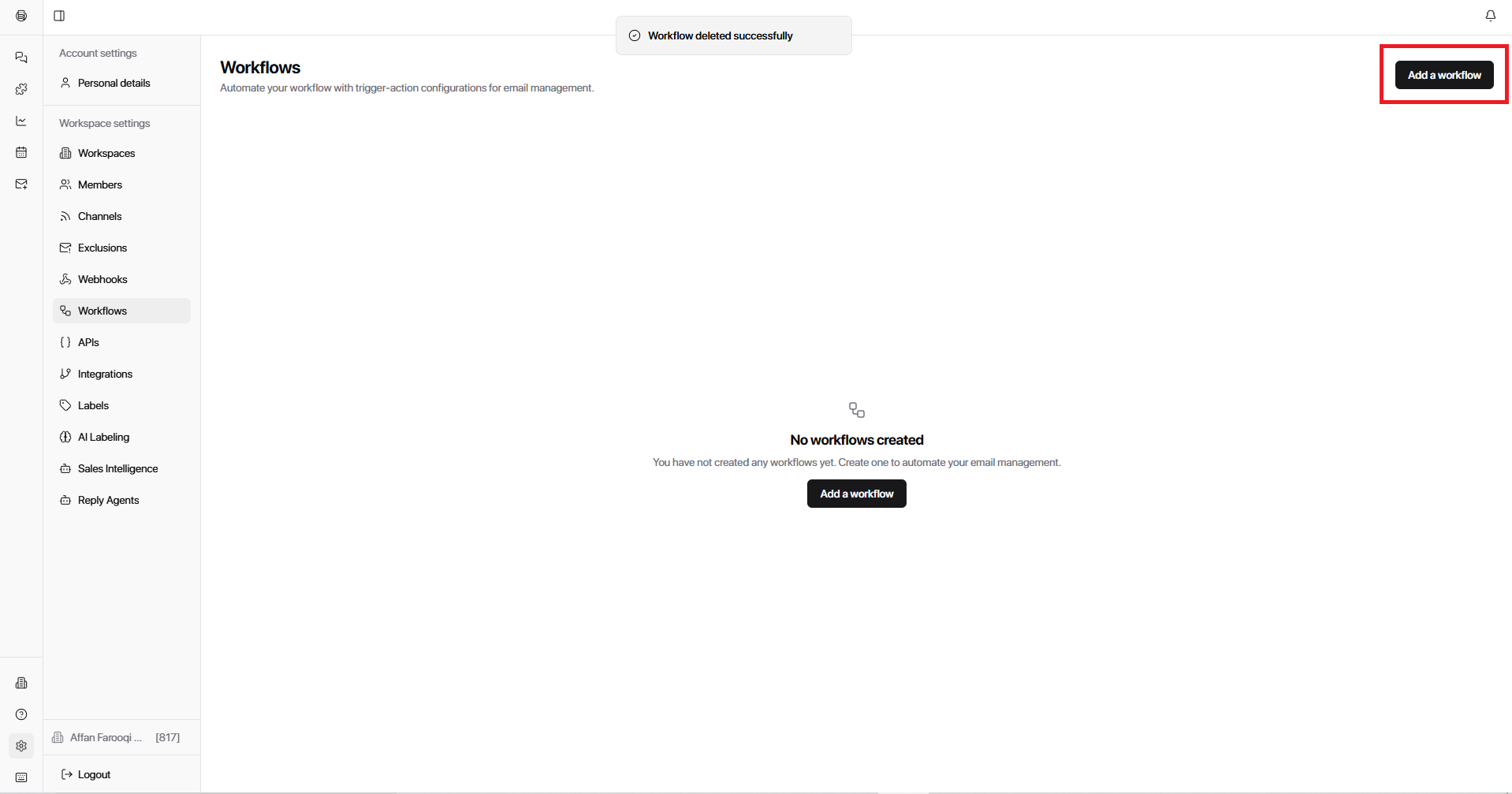
Go to Settings and select Workflows
Select Add Workflow
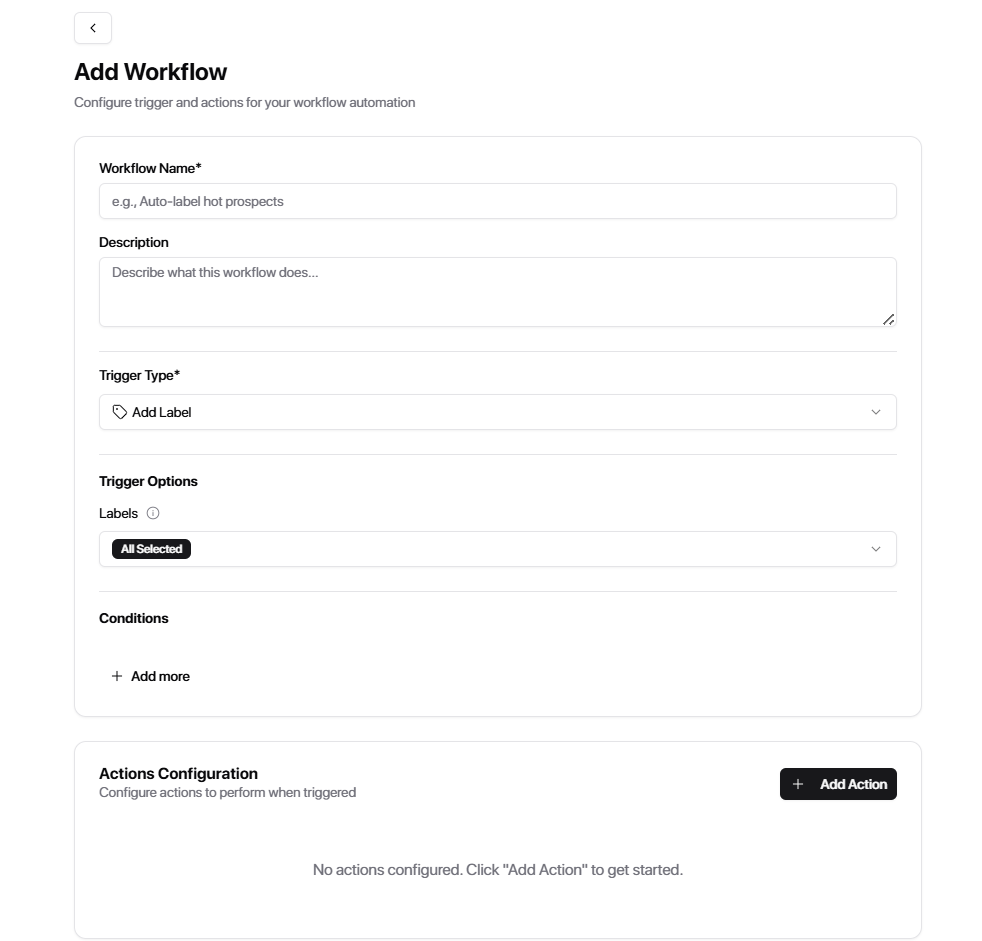
The workflow builder displays the following fields:
Workflow Name → Name your workflow
Description → What the workflow does
Trigger Type → Select the event
Trigger Options → Choose specific item (label, channel, list, etc.)
Conditions → Optional filters
Action Configuration → Define what should happen
Trigger Types
Trigger types define what starts a workflow. Below are all available trigger types:
Add Label
Triggers when a label is added to a conversation.
Remove Label
Triggers when a label is removed from a conversation.
Incoming Message
Triggers when a new message is received in your inbox.
Sending Message
Triggers when a message is sent from your inbox.
Message Seen
Triggers when a message has been viewed or seen.
Move to List
Triggers when a conversation is moved into a list.
Removed from List
Triggers when a conversation is removed from a list.
Due Reminder
Triggers when a reminder becomes due.
New Reminder
Triggers when a new reminder is created.
Found Phone Number
Triggers when a phone number is detected inside a conversation. Useful for identifying high-intent leads or triggering call tasks and notifications.
Meeting Booked
Triggers when a meeting is booked via calendar integrations (Cal.com or Calendly). Use this to stop follow-ups, notify your team, update your CRM, or add labels like "Meeting Scheduled."
Meeting Rescheduled
Triggers when a meeting is rescheduled via calendar integrations (Cal.com or Calendly). Use this to add "Rescheduled" labels, notify team members, move leads into rescheduled follow-up lists, or trigger reminder workflows.
Meeting Cancelled
Triggers when a meeting is cancelled via calendar integrations (Cal.com or Calendly). Use this to add "Meeting Cancelled" labels, restart or continue outreach, trigger rebooking follow-ups, notify account owners, or move leads into cancellation follow-up lists.
Incoming Webhook
Triggers when an external system sends data into Master Inbox via webhook. Used for external integrations, custom automations, and syncing tools.
Trigger Options
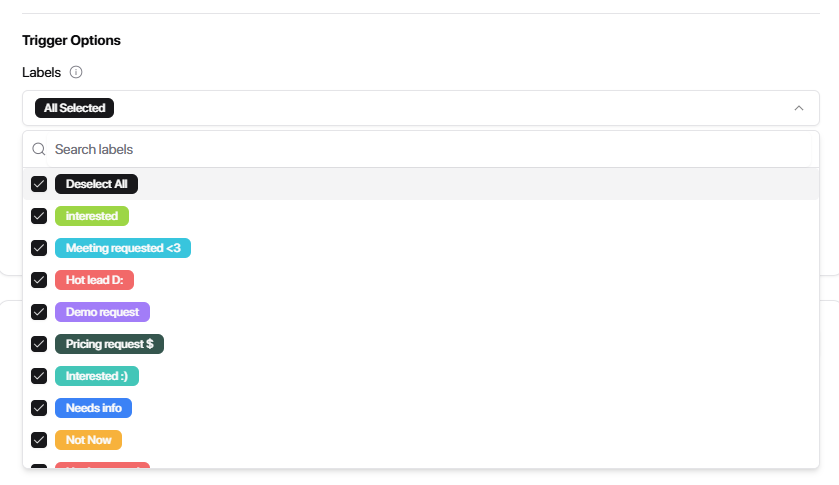
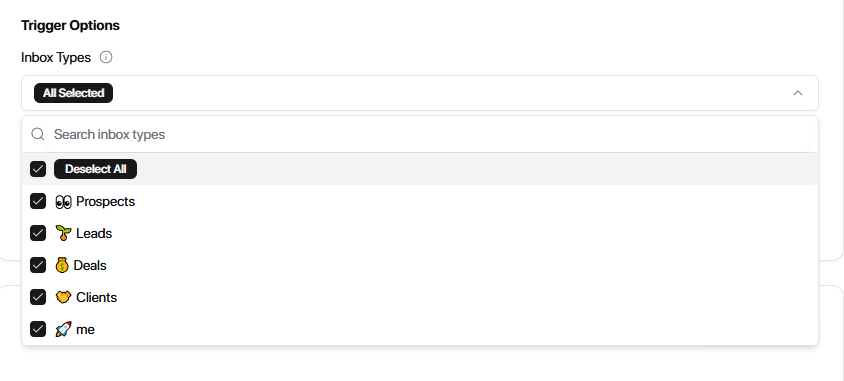
Trigger options depend on the trigger type you select. They define the exact item inside the trigger type.
Examples:
Add Label → you see all available labels in your workspace
Incoming Message → you see available channels in your workspace
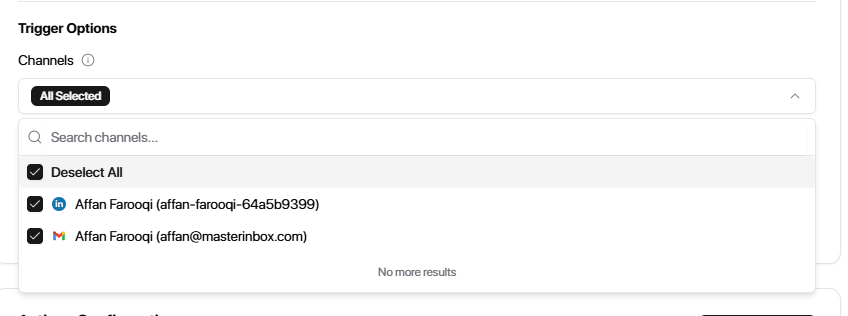
Move to List → you see all lists
Conditions
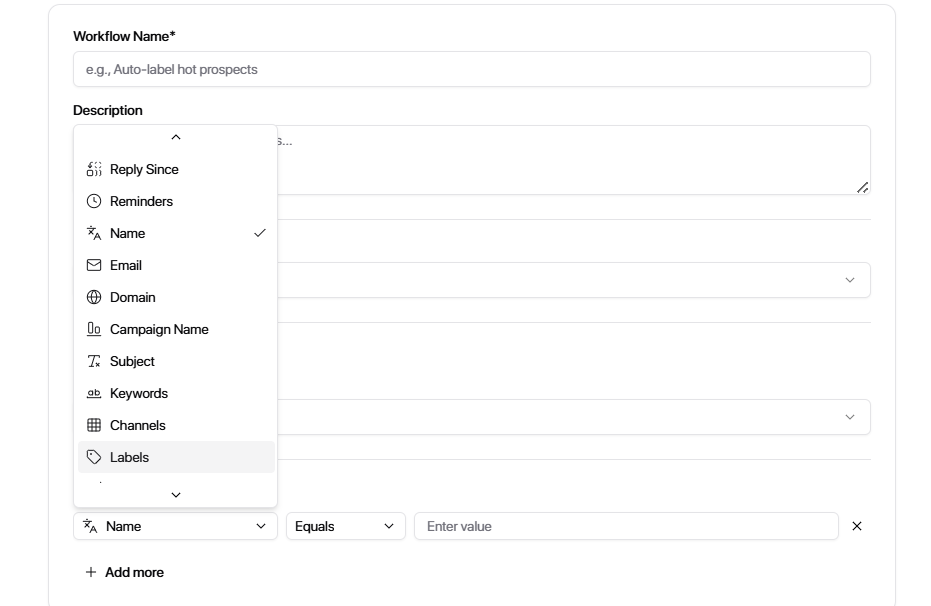
Conditions define when the workflow should run after the trigger fires.
Available Condition Types
You can set conditions based on:
Date
Reply Since
Reminder
Name
Email
Domain
Campaign Name
Subject
Keywords
Channel
Labels
Lists
Read Status
Source
Folder
Ongoing Conversation
Message From
Message Count
Condition Operators
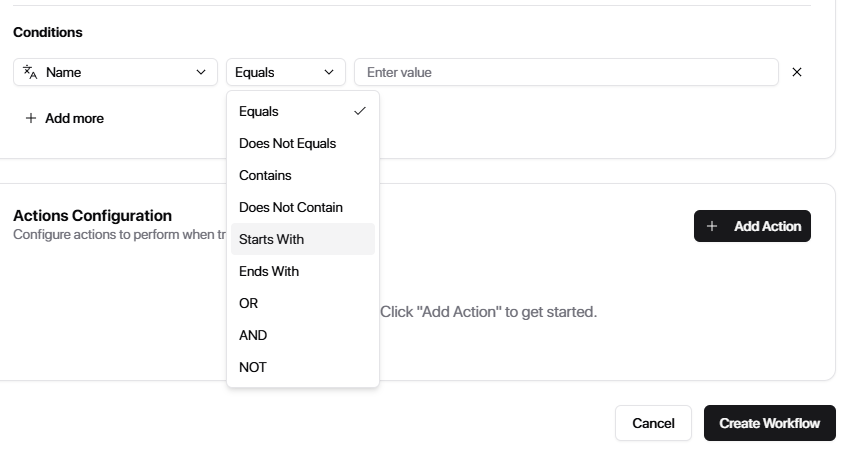
You can stack multiple conditions for precise targeting. The more specific your conditions, the more accurate your workflow.
Conditions are not required for certain trigger types:
New Reminder
Due Reminder
Found Phone Number
Meeting Booked
Meeting Rescheduled
Meeting Cancelled
Action Configuration
Action Configuration defines what happens after a workflow is triggered and all conditions are met.
Actions are divided into four main categories.
Inbox Actions
Inbox actions let you manage conversations directly inside Master Inbox.
Action Types:
Add Label → Add one or more labels to a conversation
Remove Label → Remove specific labels from a conversation
Update Label → Replace existing labels with new ones
Mark as Unread → Mark a conversation as unread
Move to Folder → Move conversation to Archive, Marketing, Spam, or Trash
Move to List → Move conversation into a specific list
Remove from List → Remove conversation from a specific list
Set Reminder → Set a reminder for the conversation (hours, days, or months)
Forward Email → Forward the message to one or more email addresses
Outbound Tools
Outbound tools allow you to trigger actions in external outreach platforms directly from your workflows.
Tools:
Heyreach
Instantly
Smartlead
Email Bison
Webhook (custom outbound automation)
Action Types:
Add to Sequence → Add a contact to a selected campaign/sequence in the connected tool
Remove from Sequence → Remove a contact from a specific campaign/sequence
Add to List → Add a contact to a selected list inside the tool
Remove from List → Remove a contact from a selected list
Additional Configuration:
Select the connected tool
Choose the campaign or sequence
Choose the list (if applicable)
Use outbound tools when you want to automatically control campaigns, sequences, or lists in your outreach platforms based on inbox activity.
Notifications
Notifications are used to alert your team when something happens.
Slack Notification
Slack Notification → Send real-time alerts to a Slack channel
Setup:
Create a Slack app
Enable Incoming Webhooks
Generate a Webhook URL
Paste the URL into the workflow
Options:
Select Slack channel
Customize payload/data sent
Include conversation data such as:
Email
Message
Labels
Email Notification
→ Send alerts via email when a workflow is triggered
Configuration:
To → Primary recipients
CC → Optional
BCC → Optional
Subject → Custom subject line
Use notifications when you want to alert your team about important events like new leads, replies, or high-intent actions.
CRM Actions
CRM actions allow you to automatically sync data from MasterInbox to your CRM.
Supported Platforms:
HubSpot
Action Types:
Sync to HubSpot → Automatically sync conversation and contact data to HubSpot
What Gets Synced:
Contact information
Conversation details
Lead activity
Associated data from workflows
Use CRM Actions when you want to keep your CRM updated automatically without manual data entry.
Once you have configured everything, review all settings carefully to make sure everything is correct.
Select "Create Workflow."
Your workflow is now configured. It will automatically run when the trigger fires and conditions are met and execute the actions you defined; no manual work required.
Use Cases
Auto-qualify leads based on labels
Trigger: Add Label
Condition: Label = “Interested”
Actions:
Move to list “Qualified”
Send Slack notification
Instantly surface high-intent leads and move them into the next stage.
Meeting Booked Automation
Trigger: Meeting Booked
Actions:
Inbox Action → Add Label → “Booked”
Inbox Action → Move to List → “Clients”
CRM Action → HubSpot → Sync
Automatically transition booked leads into your client pipeline and update CRM.
Follow-Up Reminder
Trigger: Incoming Message Action: Set reminder (e.g., 2 days)
Ensure timely follow-ups so no active conversation goes cold.
Slack Alert for High-Intent Leads
Trigger: Add Label Condition: Label = “Interested” Action: Send Slack notification
Your team is notified instantly so high-value leads can be prioritized.
Phone Number Detection Workflow
Trigger: Found Phone Number
Actions:
Add label “High Intent”
Sync to CRM
Notify team
Capture strong buying signals and route them for immediate action.
Auto-Archive Low-Priority Conversations
Trigger: Add Label
Condition: Label = “Not interested"
Action: Move to Archive
Keep your inbox clean by removing conversations that don’t require attention.
Stop Outreach After Reply
Trigger: Incoming Message
Action:
Action Category: Outbound Tool
Tool: Heyreach (or Instantly / Smartlead)
Action Type: Remove from Sequence
Select Campaign
Prevent contacts from receiving further outreach once they’ve already replied, avoiding duplicate or conflicting messages.
Organize Conversations into Lists
Trigger: Add Label Condition: Label = “Client” Action: Move to list “Clients”
Keep conversations structured and easy to manage by stage.
External Automation via Webhook
Trigger: Incoming Webhook Action: Add label / sync / notify
Connect Master Inbox with external systems for advanced automation.
FAQs
Do workflows run automatically?
Yes. Once a workflow is active, it runs automatically whenever the trigger occurs.
Can I edit a workflow after creating it?
Yes, workflows can be edited at any time.
Can I delete a workflow?
Yes, workflows can be deleted from the workflow menu (⋯).
Can I disable a workflow without deleting it?
Yes, you can toggle a workflow Active / Inactive at any time.
Do workflows run instantly?
Yes, workflows execute in real time when the trigger event occurs.
What happens if conditions are not met?
The workflow will not run.
Can I add multiple actions to a workflow?
Yes, you can configure multiple actions within a single workflow.
In what order are actions executed?
Actions are executed in the order they are added.
Can multiple workflows run at the same time?
Yes, multiple workflows can run simultaneously if their triggers and conditions are met.
What happens if multiple workflows match the same trigger?
All matching workflows will run unless restricted by conditions.
Can workflows conflict with each other?
Yes. If multiple workflows act on the same conversation, they may overlap. Use conditions and labels to control behavior.
What is the difference between trigger type and trigger options?
Trigger Type → Defines the event (e.g., Add Label, Incoming Message)
Trigger Options → Defines the specific item within that event (e.g., which label, which channel, which list)
Can I use multiple conditions in a workflow?
Yes, you can add multiple conditions to make workflows more specific.
Why are conditions not available for some triggers?
Some triggers (like Meeting Booked, Meeting Rescheduled, Meeting Cancelled, or Found Phone Number) are direct event triggers and do not require additional filtering.
Can I limit workflows to specific inboxes or channels?
Yes, using Trigger Options, you can select specific accounts or channels.
Can I use multiple action types in one workflow?
Yes, you can combine different action categories (Inbox, Outbound Tools, Notifications, CRM).
What happens if one action fails?
Other actions may still run, but the workflow may not complete fully. Check workflow logs for details.
Can workflows trigger actions in external tools?
Yes, using Outbound Tool actions (Heyreach, Instantly, Smartlead, etc.).
How do I set up Slack notifications?
You need to:
Create a Slack app
Enable Incoming Webhooks
Generate a webhook URL
Paste it into the workflow
Can I customize Slack notifications?
Yes, you can configure the payload and choose what data is included.
Can I send notifications to multiple email addresses?
Yes, you can use To, CC, and BCC fields in email notifications.
Can workflows sync data to a CRM?
Yes, workflows support CRM actions like syncing to HubSpot.
What does “Sync to HubSpot” do?
It syncs contact data, updates properties, and pushes conversation data into your CRM.
What is an incoming webhook?
An incoming webhook allows external systems to trigger workflows in Master Inbox.
How can I check if a workflow ran?
Go to the workflow menu (⋯) and click View Logs.
What do workflow logs show?
a. Execution history
b. Trigger events
c. Workflow activityShould I use labels or lists in workflows?
Use labels for logic and triggering workflows
Use lists for organizing conversations
How can I avoid workflow conflicts?
Use clear labels
Add conditions
Avoid duplicate workflows with the same logic
Can workflows be used for automation across teams?
Yes, workflows help standardize processes and automate actions across your inbox.
Workflow not running or actions failing? If your workflow isn't triggering, actions are incomplete, or outbound queues are backed up, see Troubleshoot Webhooks, Workflows, and Automation Failures.